
Signing in as a teacher
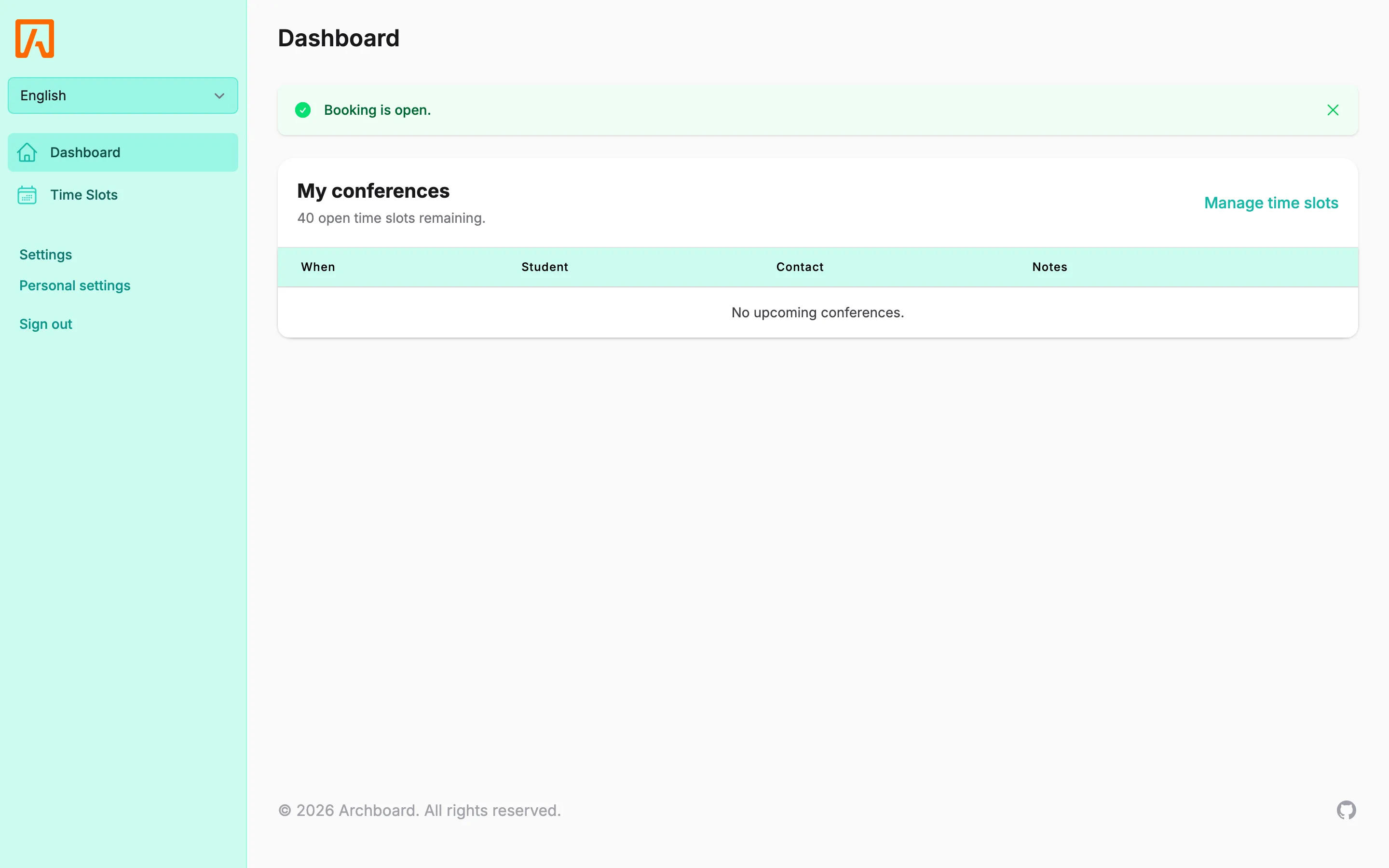
Teachers sign in to Tidal PTC with their PowerSchool account, either from PowerSchool or from your district’s Tidal PTC address. After you sign in you land on the dashboard, which lists your upcoming conferences.
Who this is for
Section titled “Who this is for”Teachers and other staff who meet with families. Your account comes from PowerSchool, so you do not need to register.
Before you start
Section titled “Before you start”- Your district must have set up Tidal PTC and synced staff from PowerSchool.
- If your district uses the hosted version, you may first be asked for a District code. Ask your school office for it.
Sign in from PowerSchool
Section titled “Sign in from PowerSchool”While signed in to PowerSchool, select the Tidal PTC link in the header. Tidal PTC opens, already signed in.
Sign in from the Tidal PTC address
Section titled “Sign in from the Tidal PTC address”- Open your district’s Tidal PTC address.


- Select Sign in with PowerSchool and sign in with your PowerSchool staff account.
- You return to the Tidal PTC dashboard.
Choose your school
Section titled “Choose your school”If your district has more than one school, Tidal PTC asks you to Choose your current school the first time you sign in. If you have access to more than one school, a school menu at the top of the sidebar lets you switch later. Time slots and conferences always belong to the school you have selected.
Your dashboard
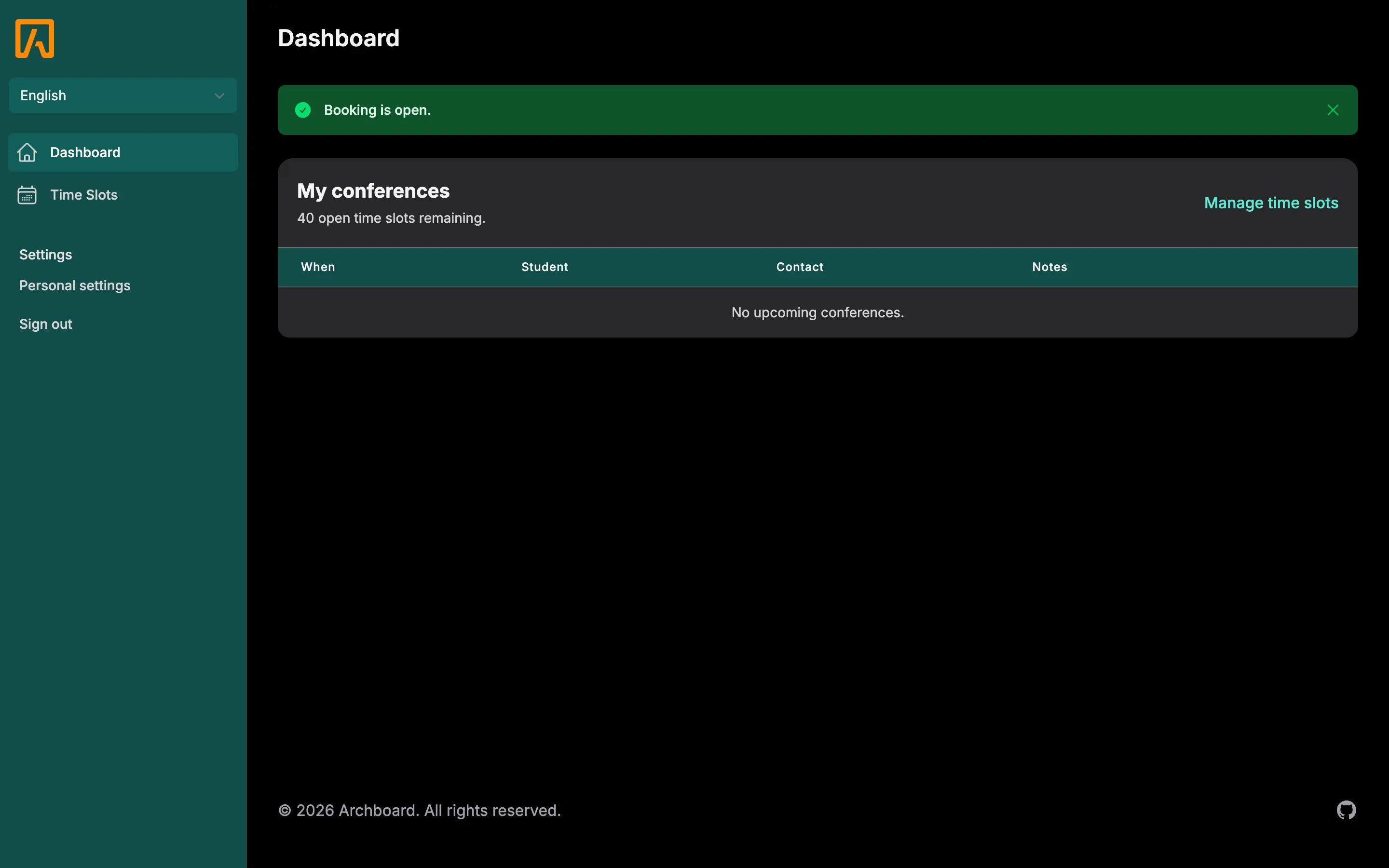
Section titled “Your dashboard”The dashboard shows whether booking is open for families (for example Booking is open. or Booking is closed.) and a My conferences card with your upcoming booked conferences and how many open time slots you have left.