

Booking a conference
You book a conference by choosing a teacher on your dashboard and picking one of their open times. You can move it to another time or cancel it later. You get an email each time a conference is booked, moved or cancelled.
Who this is for
Section titled “Who this is for”Parents and guardians booking conferences for their children.
Before you start
Section titled “Before you start”- Sign in and find your child on the dashboard. See Choosing a student.
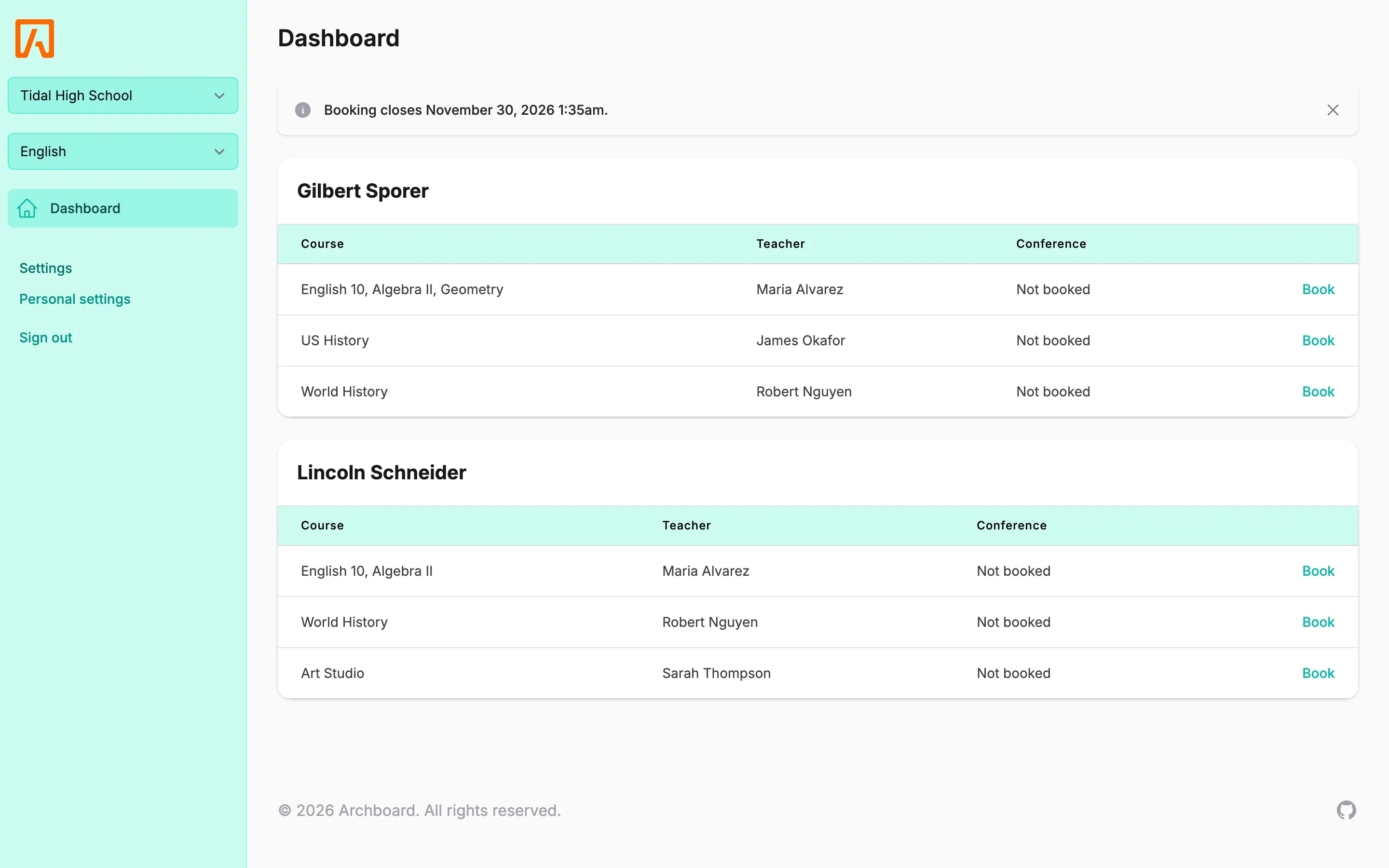
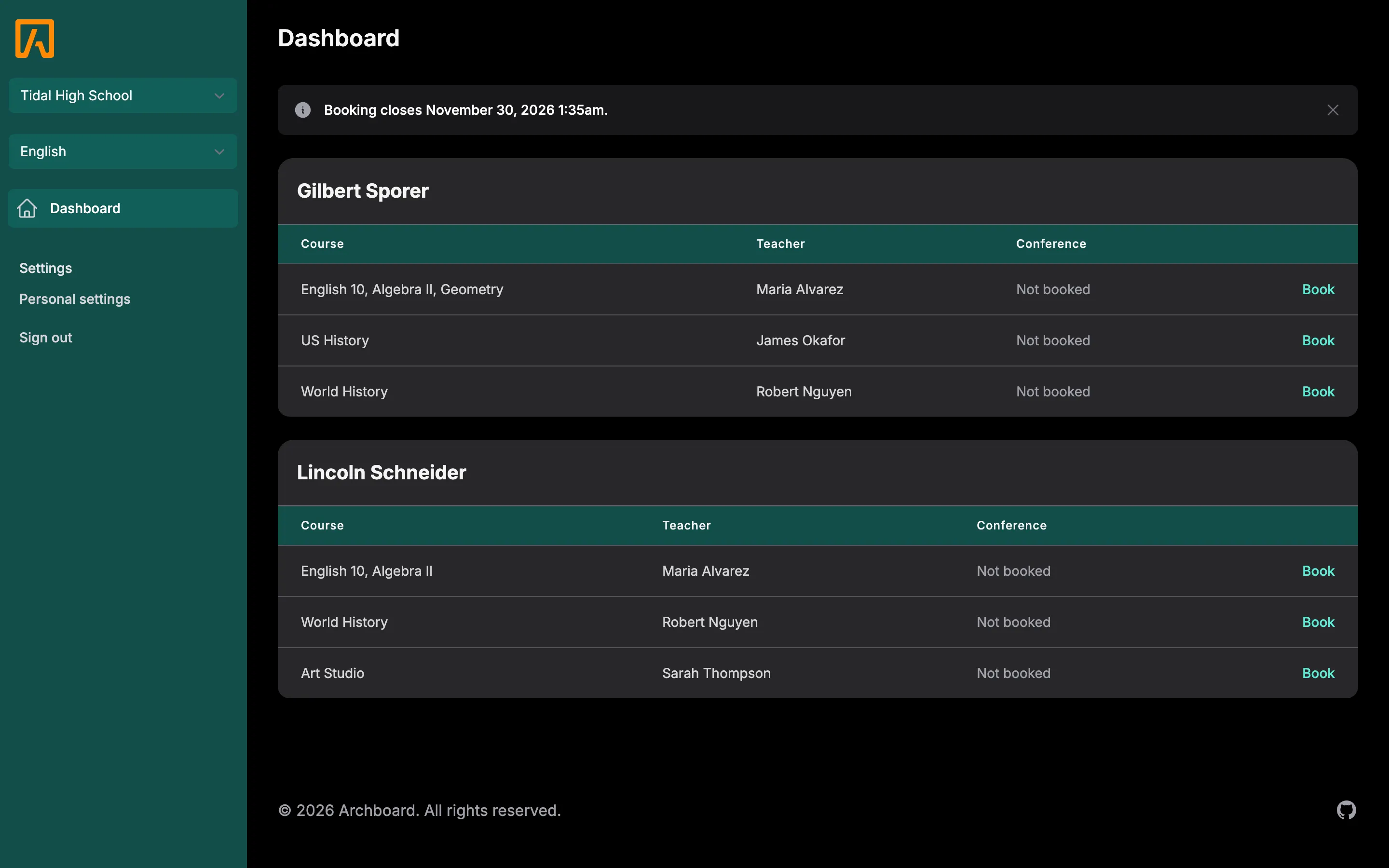
- Booking must be open. The top of your dashboard tells you, for example Booking is closed with the date it opens, or the date booking closes.
- Check that times show in your own timezone. See Language and timezone.
Book a conference
Section titled “Book a conference”- On the dashboard, find your child and the teacher, then select Book.
- A window opens with your child’s and the teacher’s names. It says Choose a time that works for you.
- Pick a time. List shows the open times grouped by day. Calendar shows them on a calendar, where taken times are gray and marked Booked, and times that clash with another of your conferences are marked Conflict.
- Under Location, read any teacher notes about the slot. Under the time you chose, add any Notes for the teacher (for example, anything you would like to discuss).
- If you see them, you can also check I would like to meet online (see Online meetings) or choose a language under Translator (see Requesting a translator).
- Select Book conference. You see “Conference booked successfully.” and the conference appears under Your conferences at the top of the dashboard.
If the window says There are no available times right now., all of the teacher’s times are taken or too soon to book.
See your conferences
Section titled “See your conferences”The Your conferences list at the top of the dashboard shows When, Student, Teacher and Where for every upcoming conference, with the teacher’s notes for the slot if there are any. Where shows the room, Online, or a Join video call link.
Move a conference to a different time
Section titled “Move a conference to a different time”- On the dashboard, find the booked teacher in your child’s list and select Edit.
- The window says when the conference is currently booked. Your current time is marked Current.
- Pick a new time, check your notes, then select Move conference.
You can only move a conference to another time with the same teacher, and only while booking is open.
Cancel a conference
Section titled “Cancel a conference”- On the dashboard, find the booked teacher in your child’s list and select Cancel.
- Confirm with Cancel conference. You see “Conference cancelled.”
Booking rules
Section titled “Booking rules”These rules keep the schedule fair. If one applies, the window shows a message explaining why.
- One conference per teacher. Each child can have one upcoming conference with each teacher. To change it, move it instead of booking again.
- No double booking. You cannot pick a time that overlaps another conference for the same child, or another conference you booked for any of your children.
- Not too close to the start. The school sets a number of hours before each conference when it can no longer be booked or cancelled online. Those times do not appear.
- First come, first served. If someone else books a time just before you, you see “This time slot has already been reserved.” Pick another time.
- Booking window. You can only book, and move, conferences between the dates the school opens and closes booking.