

Notification preferences
Tidal PTC emails you when a family books, moves or cancels a conference with you, when a booked conference’s details change, and before your conferences start. You can turn each email on or off and set how early the reminder arrives.
Who this is for
Section titled “Who this is for”Teachers and staff with conference time slots.
Before you start
Section titled “Before you start”- Emails go to the email address on your account, which syncs from PowerSchool. If your account has no email, you get no notifications.
- Every email type is on by default.
Change your notification preferences
Section titled “Change your notification preferences”- Open Personal settings from the sidebar.
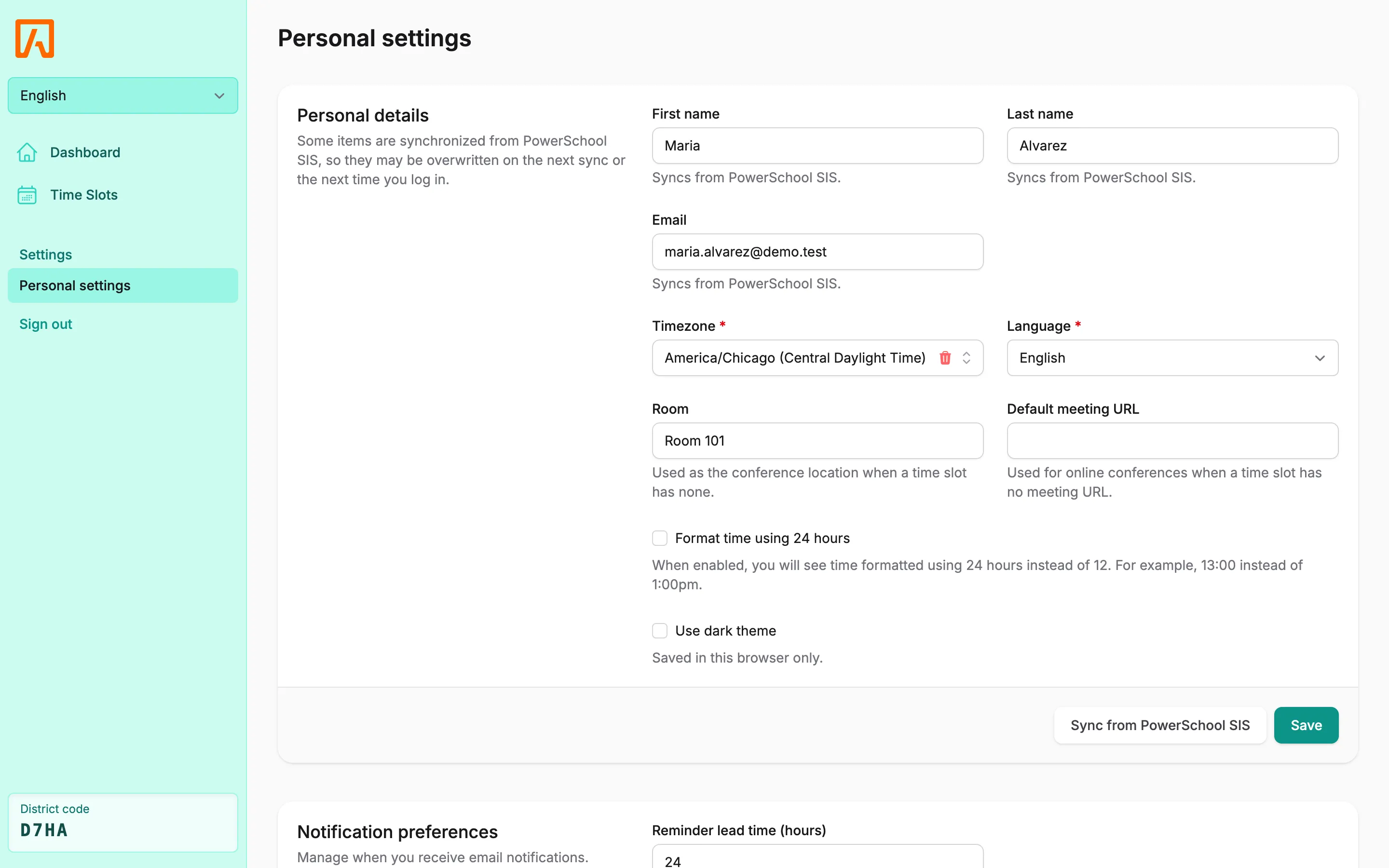
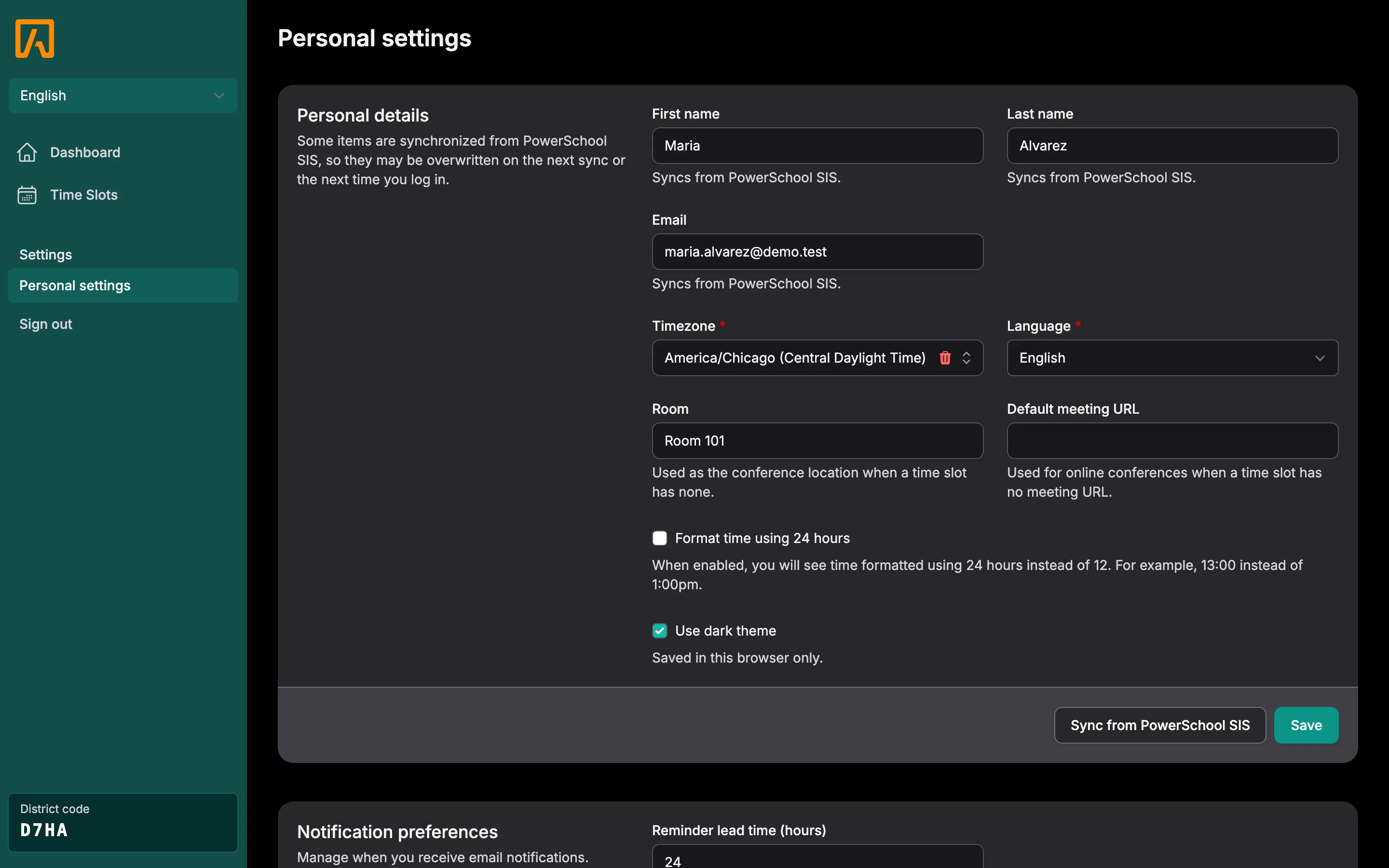
- Scroll to Notification preferences.
- Set Reminder lead time (hours), from 1 to 168. The default is 24.
- Check or uncheck each email type.
- Select Save.
Email types
Section titled “Email types”| Setting | Sent when |
|---|---|
| Reservation booked | A conference with you is booked. |
| Reservation cancelled | A conference with you is cancelled, by the family, by you or by the school. |
| Reservation rescheduled | A family moves their conference to a different one of your slots. |
| Reservation updated | The time, location, meeting link, online setting or teacher notes of a booked slot change. |
| Reservation reminder | Your reminder lead time is reached before a booked conference. |
Each email names the student and teacher, gives the time in your timezone, and lists the location or meeting link and any translator request. It has an Open dashboard button.
How reminders work
Section titled “How reminders work”Reminders are checked every hour. When one of your booked conferences starts within your lead time, you get one email that lists all of your upcoming conferences, with a conferences.ics calendar file attached. Each conference is included in a reminder once; if it is rescheduled or its details change, it can be reminded again.