

Translators
When a school allows translator requests, families can ask for a translator in a specific language when they book a conference. The Translators pages let staff see every request, track capacity per language, keep a list of translators, assign them to conferences without double-booking, and export schedules as CSV.
Who this is for
Section titled “Who this is for”Office staff and administrators who coordinate translators for conferences.
Before you start
Section titled “Before you start”- In school settings, check Allow contacts to request a translator and add at least one language under Translator settings. If you remove a language there, existing bookings keep it, but new bookings in that language are refused. The Translators menu item only appears when translator requests are allowed.
- You need View list on Time Slots to see requests. Adding, editing, removing and assigning translators needs Update on Time Slots. See Users and permissions.
- Each time slot must also allow translator requests (Allow translator request in the time slot options).
Review translator requests
Section titled “Review translator requests”Select Translators in the navigation to open Translator requests.
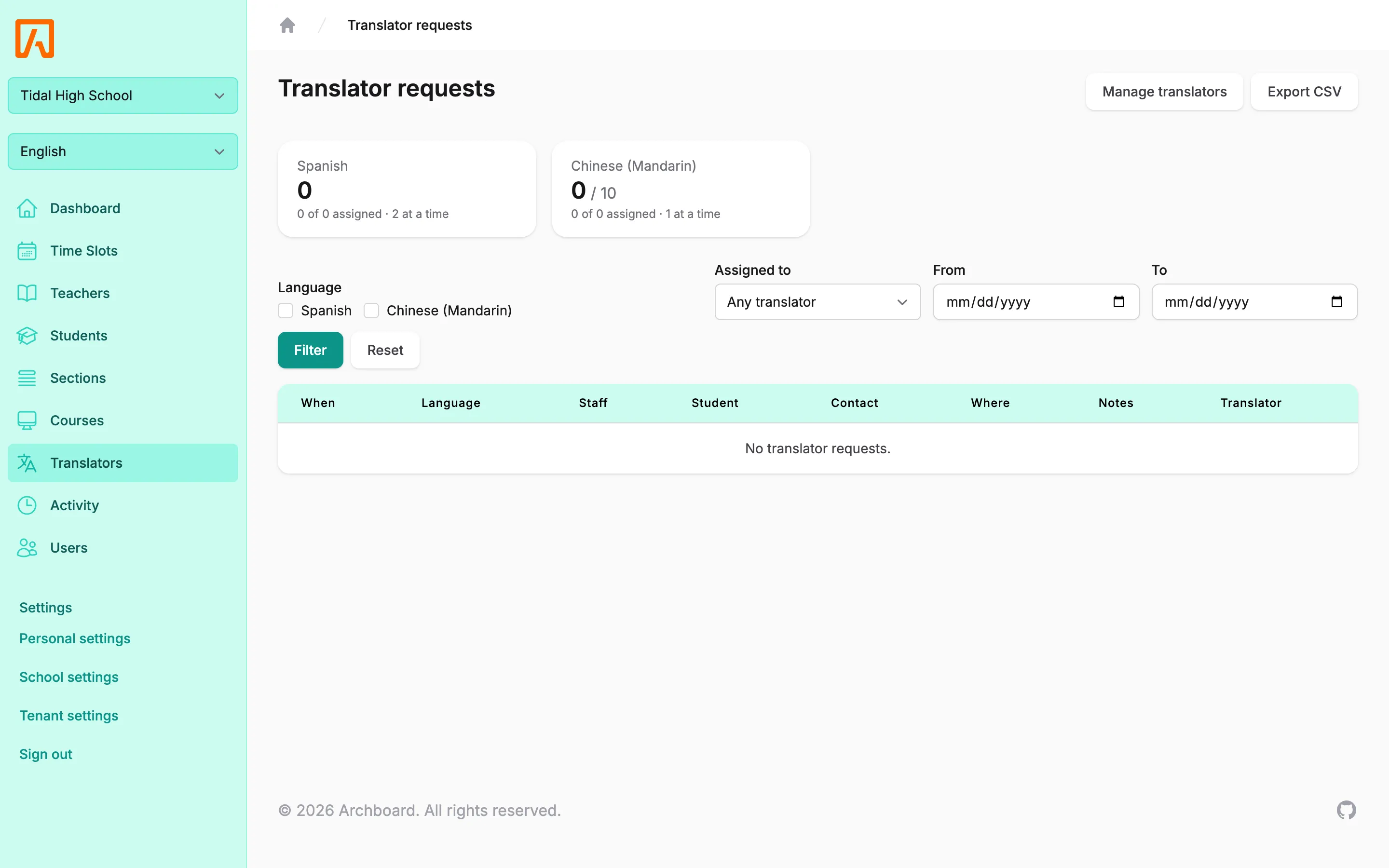
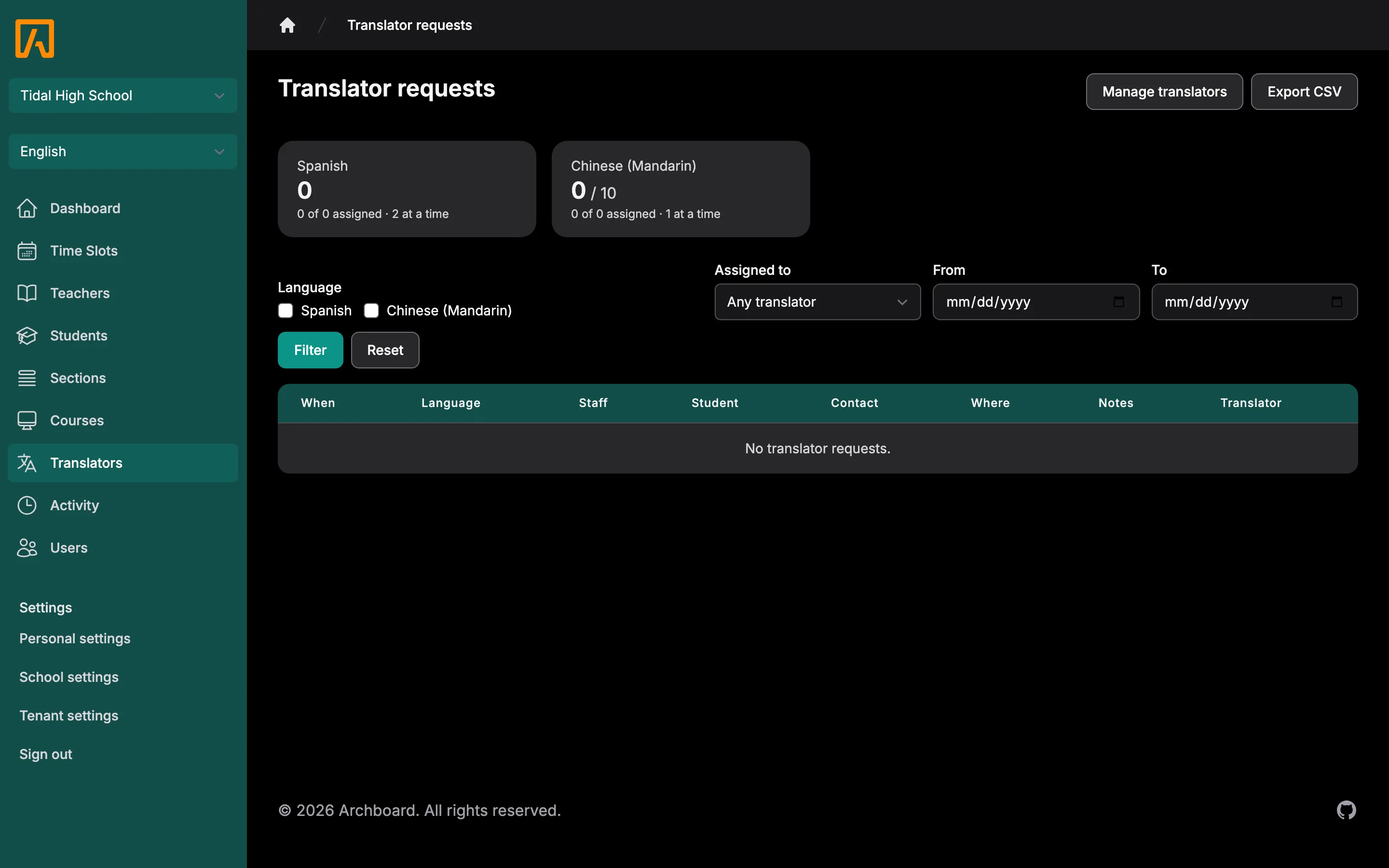
At the top, one card per school language shows the number of upcoming requests (against Maximum requests, if set), how many are assigned, and the Maximum overlaps limit if set, for example “2 of 5 assigned · 1 at a time”.
The table lists every booked conference with a translator request: When, Language, Staff, Student, Contact (name and email), Where (the location, or “Online”), Notes (the family’s notes and any translator notes) and Translator.
To filter the list:
- Check one or more languages under Language.
- Under Assigned to, choose Any translator, Unassigned, or a specific translator.
- Optionally set From and To dates.
- Select Filter. Select Reset to clear the filters.
Add a translator
Section titled “Add a translator”- On Translator requests, select Manage translators.
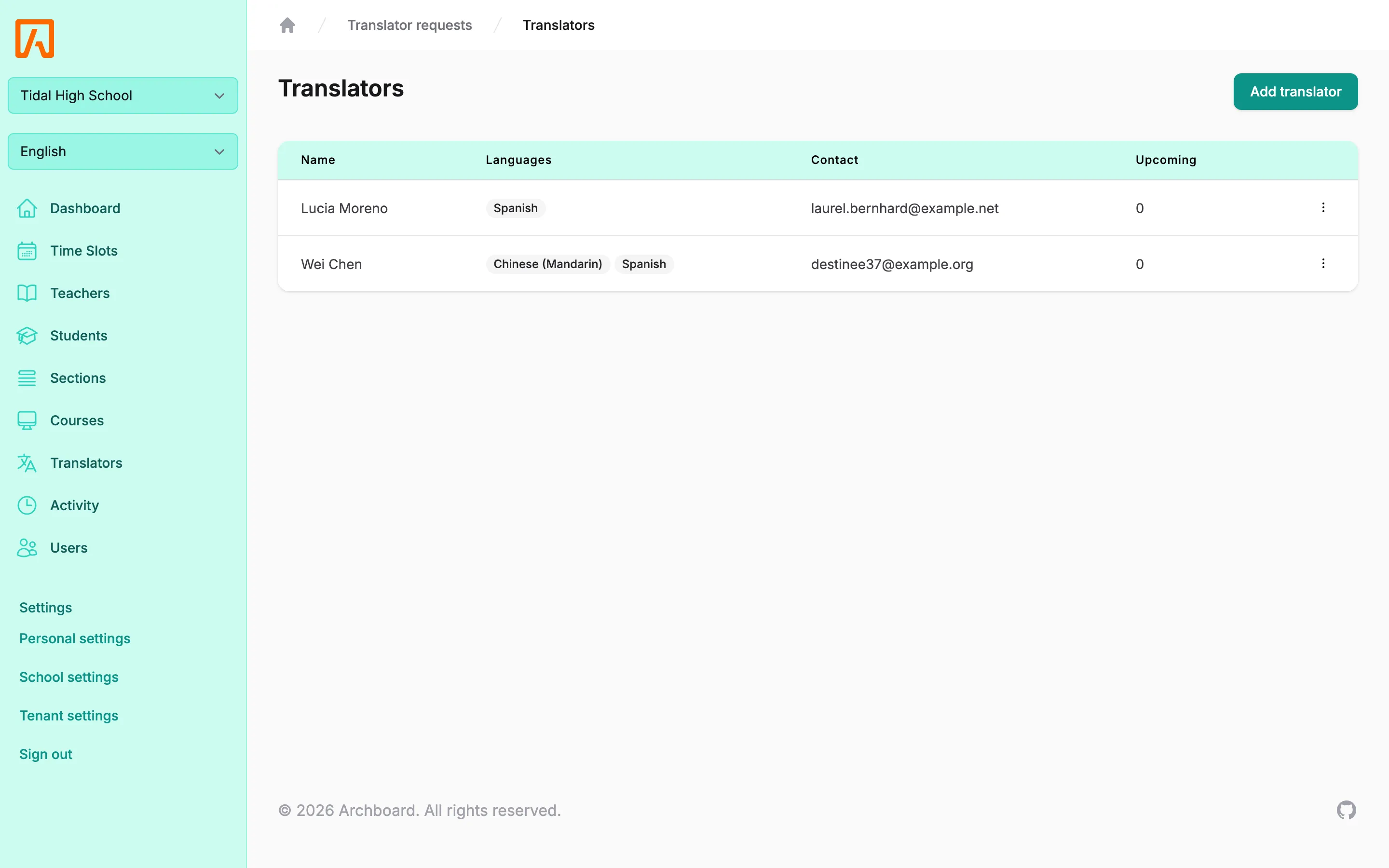
- Select Add translator.
- Enter the Name (required), and optionally Email, Phone and Notes.
- Check the Languages they translate. At least one is required, and only the school’s configured languages are offered.
- Leave Active checked so they can be assigned.
- Select Save. You see “Translator added.”
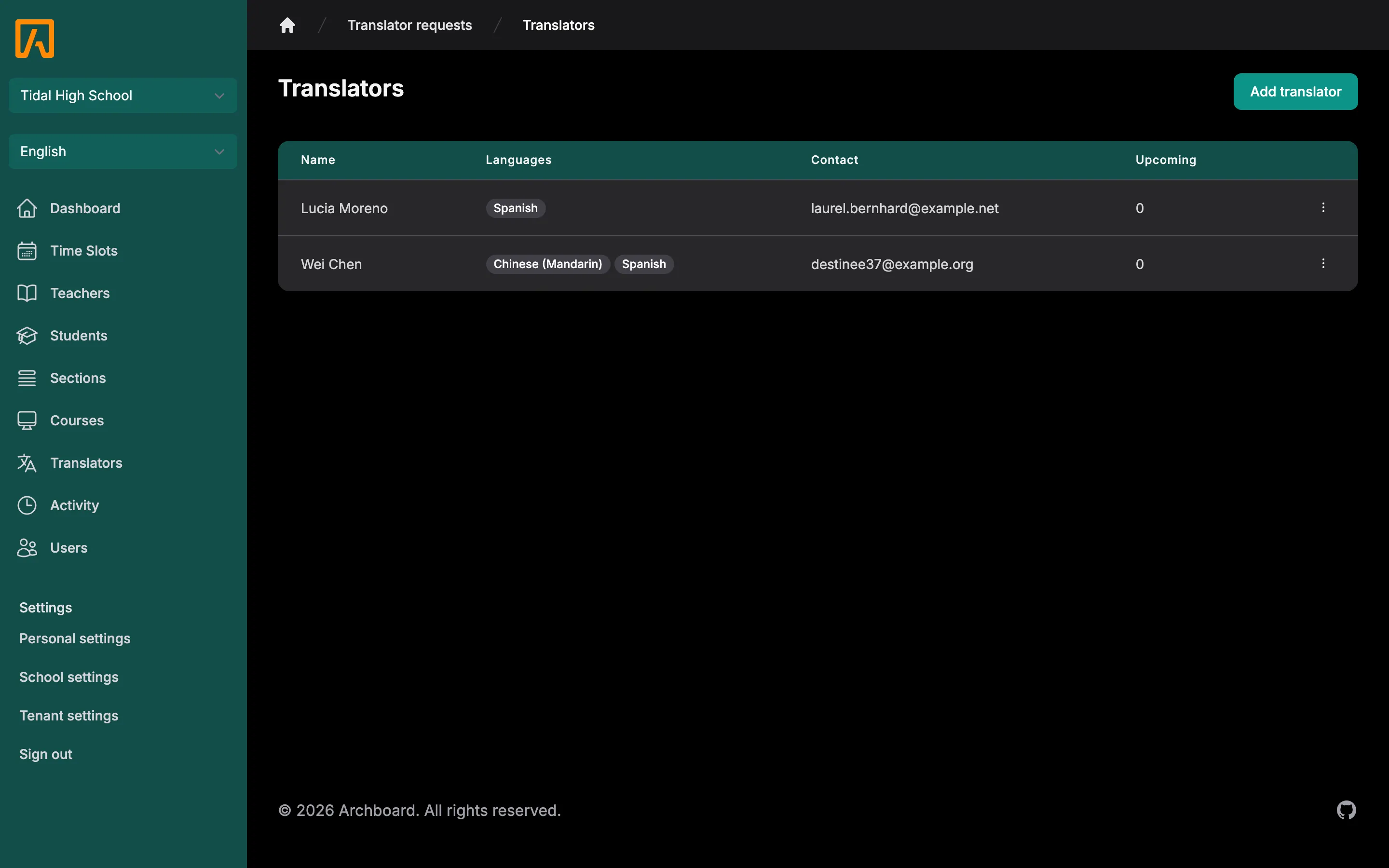
Translators belong to the current school. The table shows each translator’s languages, contact details and number of Upcoming assignments. Inactive translators are labeled Inactive.
To change a translator, open the row menu and select Edit. To remove one, select Remove, then Remove translator to confirm.
Assign a translator to a conference
Section titled “Assign a translator to a conference”- On Translator requests, find the request. Filter by Unassigned to see what still needs a translator.
- In the Translator column, choose a translator. Choose Unassigned to remove the assignment.
You see “Translator assigned.” or “Translator unassigned.” The change is recorded in the activity log.
The assignment is refused if:
- the translator is inactive: “This translator is not active.”;
- they do not speak the requested language: “This translator does not speak the requested language.”;
- they are already assigned to an overlapping conference: “This translator is already assigned to an overlapping conference.”
You can also assign a translator from the Edit time slot window on a booked slot, and add Translator notes there for the translator.
Export to CSV
Section titled “Export to CSV”- Export CSV on Translator requests downloads the requests matching the current filters as
translator-requests-<date>.csv. - Schedule CSV in a translator’s row menu on the Translators page downloads that translator’s assignments as
translator-schedule-<name>-<date>.csv.
The columns are Date, Start, End, Language, Translator (all-requests export only), Staff, Student, Contact, Contact email, Where, Contact notes and Translator notes. Times are in the school’s timezone.