

Time slots and batches
Time slots are the conference times families can book. Office staff and administrators can create time slots for a single staff member, or create the same times for many teachers at once with a batch. This page covers both, plus the rules for editing and deleting slots that are already booked.
Who this is for
Section titled “Who this is for”School staff and administrators who set up conference schedules. Teachers managing their own slots should read Creating slots.
Before you start
Section titled “Before you start”- You need Create on Time Slots to create slots for other people and to create batches. Editing batches needs Update, and deleting batch times needs Delete. See Users and permissions.
- Check the school’s time slot settings: online meetings, translator requests and the booking windows affect what you see here.
- Staff only appear as bookable if they can own time slots: teachers with sections from the SIS, or anyone granted Own time slots.
The time slots calendar
Section titled “The time slots calendar”Select Time Slots in the navigation to see a calendar of your own time slots.
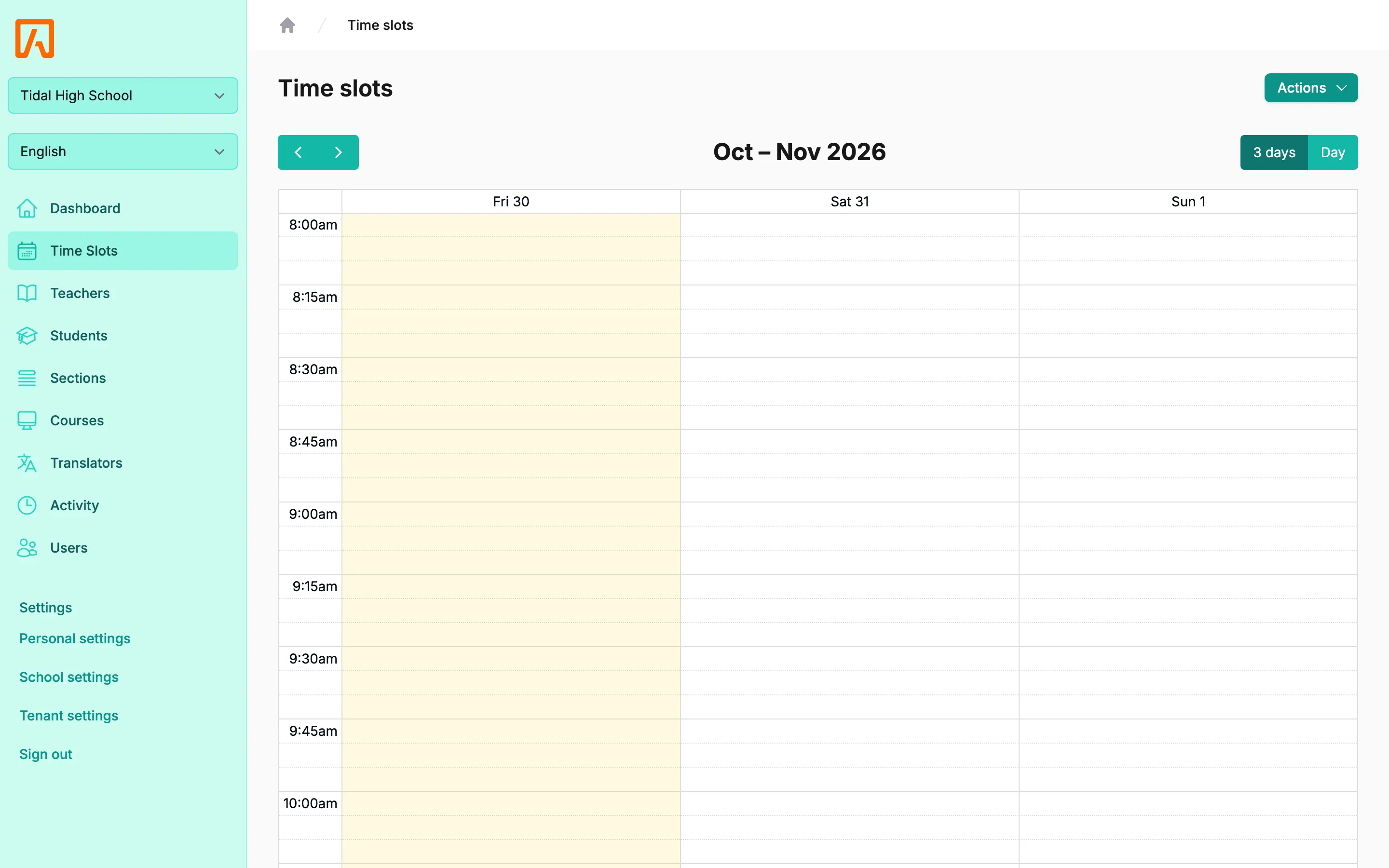
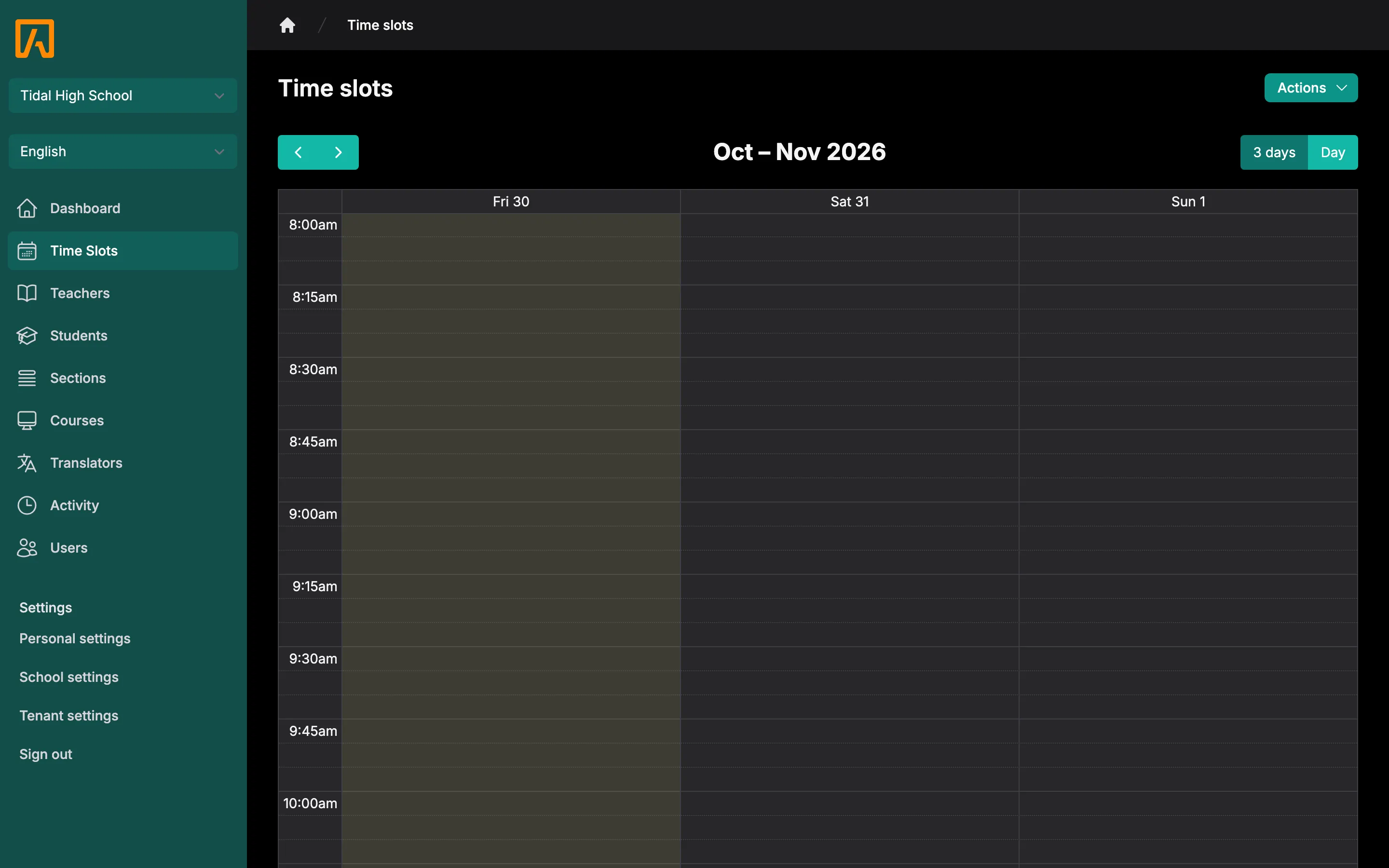
The actions menu at the top has:
- Manage batches: the list of batches (needs View list on Time Slots).
- Manage my time slots: create and edit your own slots.
Create time slots for one staff member
Section titled “Create time slots for one staff member”- Go to Users or Teachers, open the person’s row menu and select Edit time slots. You can also select Manage time slots on their user page.
- In the Default settings card, set the options that new slots should use. Select Hide time slot details to collapse the card.
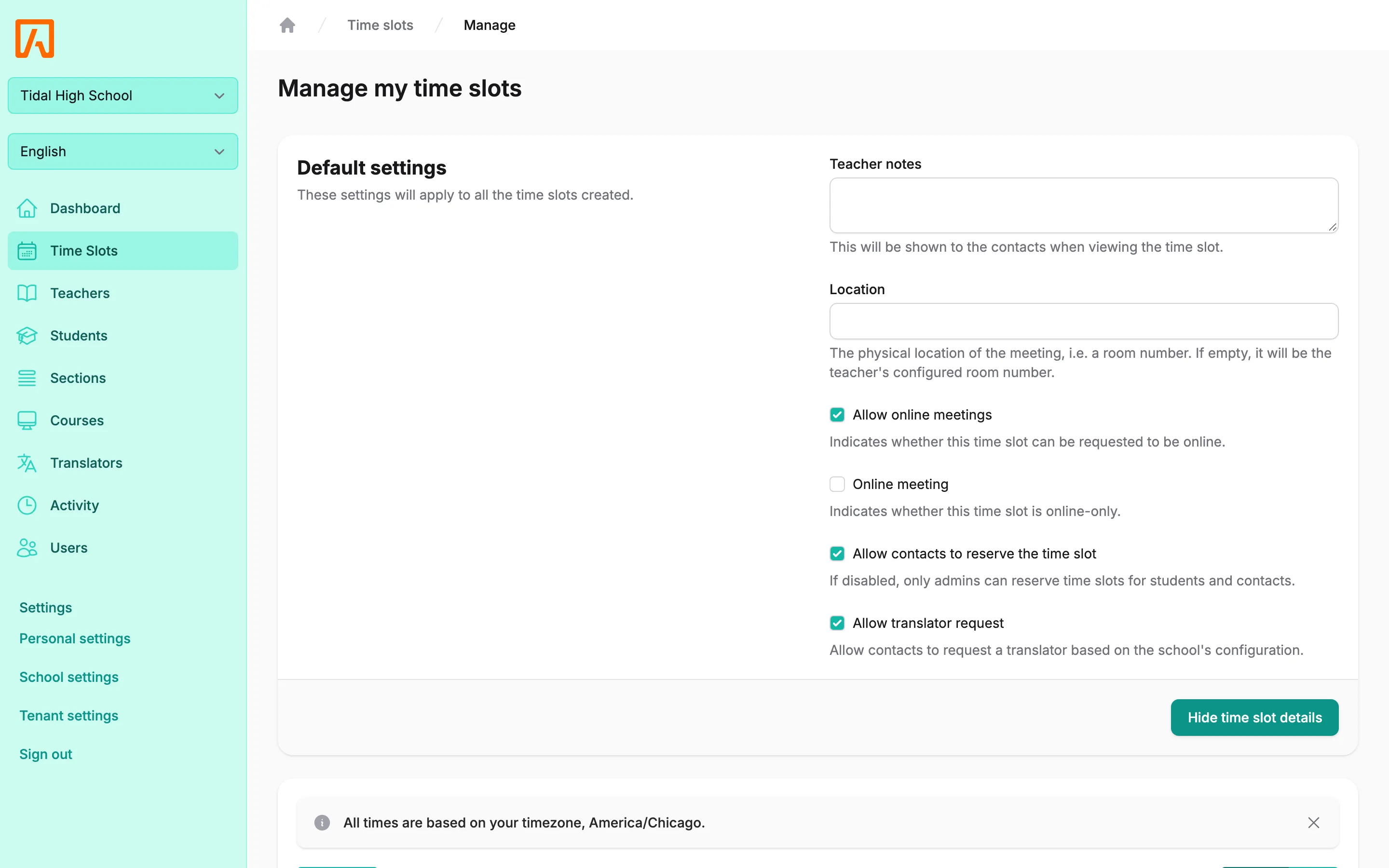
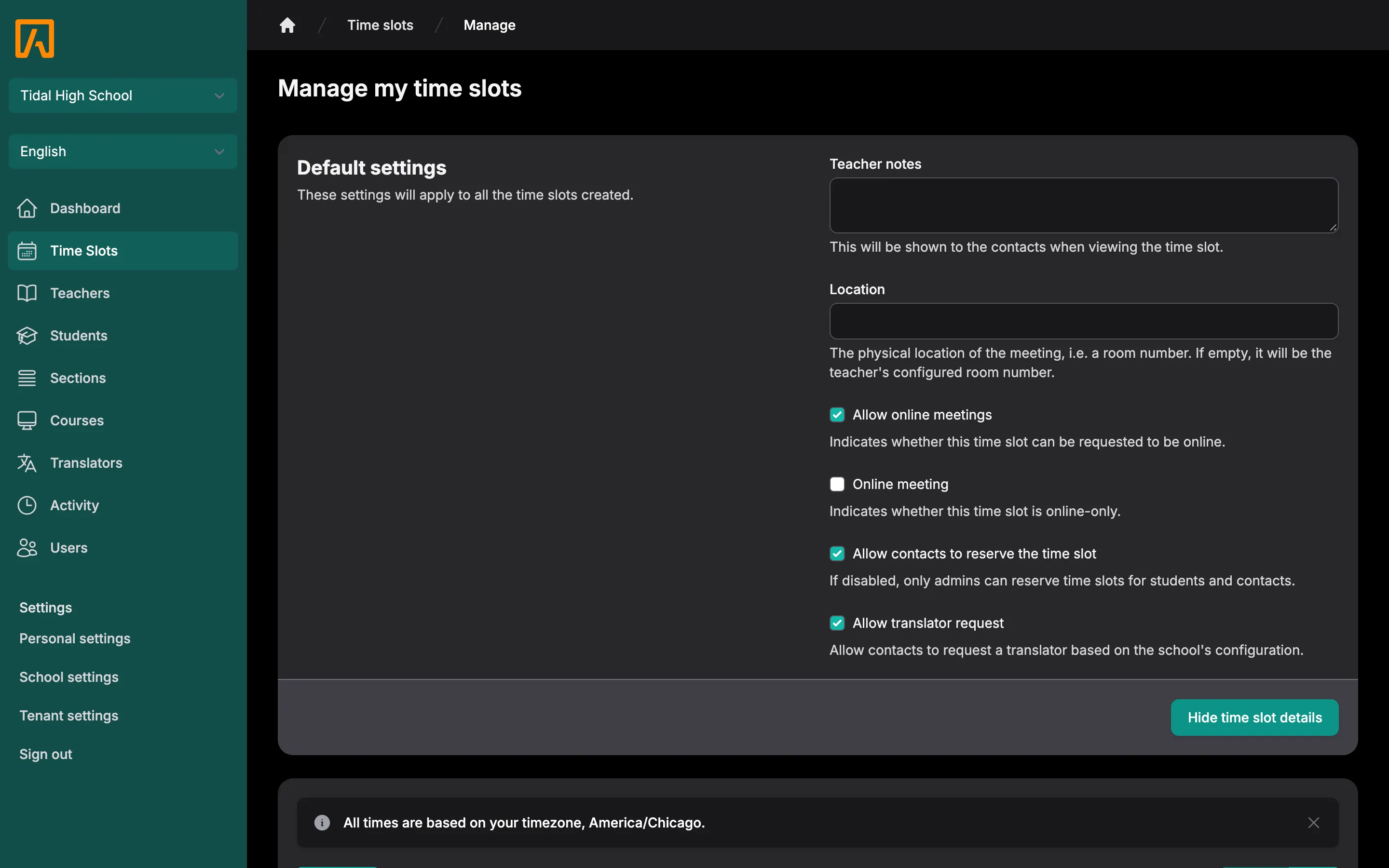
- On the calendar, click and drag across the times you want. Each selection creates one time slot with the default settings.
- Drag a slot to move it, or drag its edge to change its length.
- Click a slot to open Edit time slot, change its settings, and select Save.
Times on this page are in your own timezone, as the note above the calendar says.
Time slot options
Section titled “Time slot options”| Option | What it does |
|---|---|
| Teacher notes | Shown to contacts when they view the time slot. |
| Location | The physical location, such as a room number. If empty, the teacher’s configured room number is used. Hidden when the slot is online-only. |
| Allow online meetings | The slot can be requested to be online. Only shown when the school allows online meetings. |
| Online meeting | The slot is online-only. |
| Meeting URL | The link for an online slot. When you edit an online slot, it is required unless the slot’s teacher has a default meeting URL in their personal settings. |
| Allow contacts to reserve the time slot | If unchecked, only staff can reserve the slot for students and contacts. |
| Allow translator request | Contacts can request a translator, based on the school’s language settings. Only shown when the school allows translator requests. |
Create time slots for many teachers (batches)
Section titled “Create time slots for many teachers (batches)”A batch creates the same time slots for every teacher you select, so you can set up a conference evening in one pass.
- Select Teachers in the navigation.
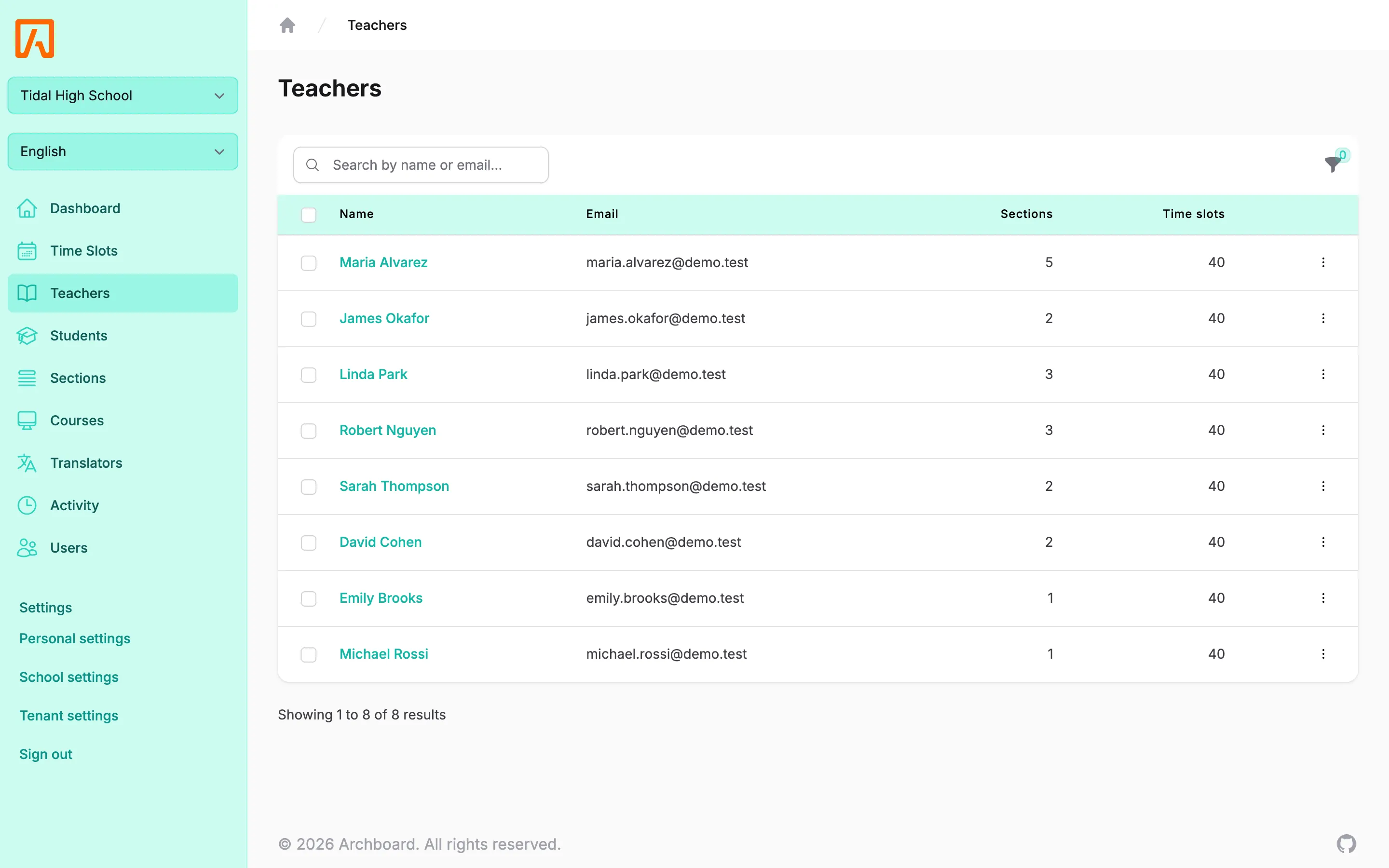
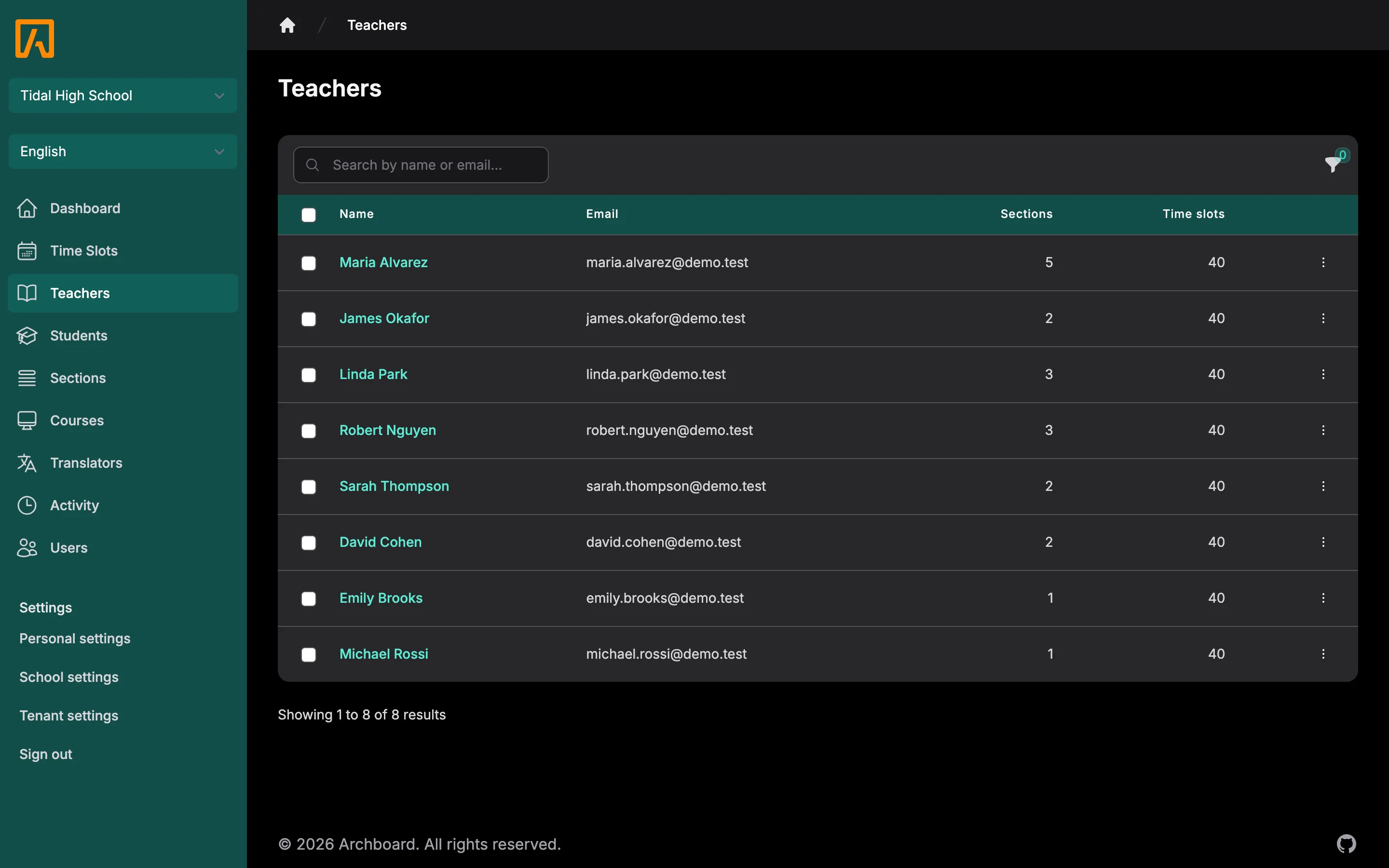
- Check the teachers you want. Use the filters to narrow the list first if needed.
- Open Actions above the table and select Create time slots.
- On the Edit time slot batch page, set the Default settings. An alert shows how many people the batch covers; select View list to see them.
- Click and drag on the calendar to add a time. Tidal PTC creates that time slot for every selected teacher.
Times on the batch page are in the school’s timezone.
Edit or delete a batch time
Section titled “Edit or delete a batch time”Click a time on the batch calendar to open Edit time slot.
- Save changes only the fields you edited (teacher notes, location, online meeting settings, meeting URL, contacts can book and translator requests) on every slot in the batch at that start and end time, including booked ones. Slots keep their teacher and stay in the batch. If a booked slot’s time, location, meeting URL, online setting or teacher notes change, the family and teacher are notified (see below).
- Delete removes every slot in the batch at that time that has not been booked. Booked slots are kept.
Find an existing batch
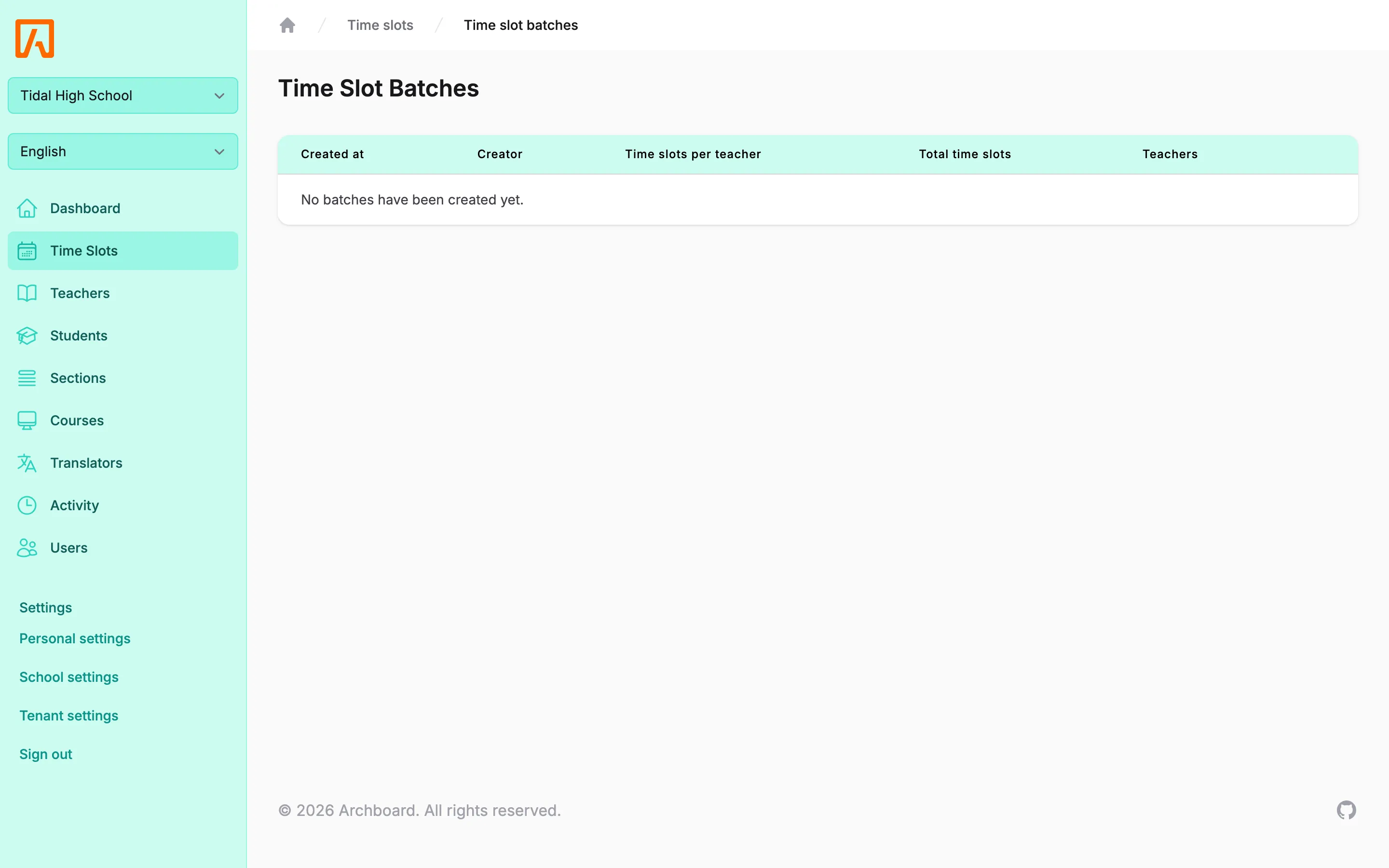
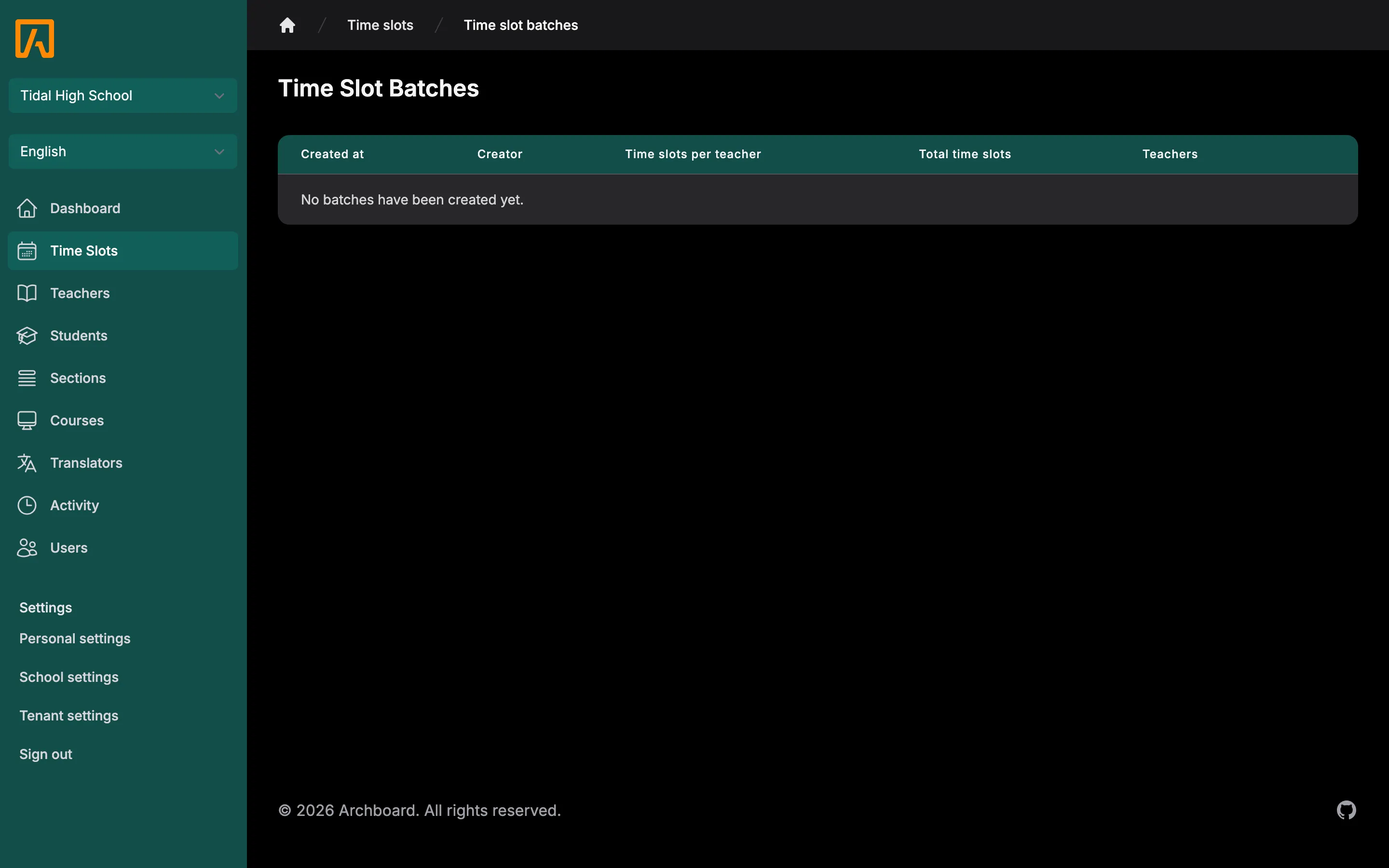
Section titled “Find an existing batch”Select Manage batches from the time slots calendar to open the batch list. It shows when each batch was created, who created it, the number of time slots per teacher, the total number of time slots and the number of teachers. Select Edit to reopen a batch.
Rules for booked slots
Section titled “Rules for booked slots”- New and edited slots must start in the future, and the end must be after the start.
- Only staff with Update on Time Slots can move a booked slot to a different time. Others see “Reserved time slots cannot be moved.”
- Only staff with Update on Time Slots can delete a booked slot. Others see “Reserved time slots cannot be deleted.” Deleting a booked slot cancels the conference, notifies the family and the teacher, and records “Conference cancelled” in the activity log.
- When you change the time, location, meeting URL, online setting or teacher notes of a booked slot, the family and teacher are notified, and reminders are sent again before the new time.
- Teachers can always edit and delete their own unbooked slots.
When a slot is booked, Edit time slot also shows the reservation: the student, who booked it and when, their notes, whether they asked to meet online, and any translator request. From there you can select Cancel reservation, assign a translator, or add Translator notes (visible to staff only). Expand History to see the slot’s recent activity.