

PowerSchool
Tidal PTC gets its people and classes from PowerSchool through a PowerSchool plugin. The plugin gives Tidal PTC read-only API access (a client ID and secret), adds a Tidal PTC sign-in link inside PowerSchool, and lets people sign in from Tidal PTC’s own login page with their PowerSchool account. This page covers installing the plugin, how registration works, the sign-in options and how data is synced.
Who this is for
Section titled “Who this is for”District admins and IT staff connecting Tidal PTC to PowerSchool.
Before you start
Section titled “Before you start”- PowerSchool admin access, to install and enable plugins.
- A running Tidal PTC install on its final domain. See Requirements.
- PowerSchool and Tidal PTC must be able to reach each other over HTTPS: PowerSchool calls Tidal PTC to register the plugin, and Tidal PTC calls PowerSchool’s API.
- To download the plugin after installing, you need the edit tenant settings permission.
What the plugin contains
Section titled “What the plugin contains”The plugin is a zip file, tidal-ptc-plugin.zip, built for one domain. It sets up:
- Registration: a callback to
https://<your-domain>/api/powerschool/registration, so PowerSchool can send the plugin’s credentials to Tidal PTC when you enable it. - OAuth: read-only API access (
accessLevelV1Api="READ") for the staff, parent and teacher personas, with the redirect URI/auth/powerschool/oidc. - OpenID links: a Tidal PTC link (“Sign in to Tidal PTC”) in the admin header, the admin left navigation, the teacher header and the guardian header, pointing at
/auth/powerschool/openid. - Data access: view-only access to the PowerSchool fields Tidal PTC syncs (users, students, schools, staff, courses, sections, terms and contact tables).
- PowerQueries that Tidal PTC uses for things such as searching users.
Each download gets a higher version number (1.0.0, 1.0.1, 1.0.2, and so on), because PowerSchool only accepts an updated plugin with a higher version. That means you can install a new download over the previous one.
Install the plugin
Section titled “Install the plugin”-
Download the plugin from Tidal PTC, on the domain people will use:
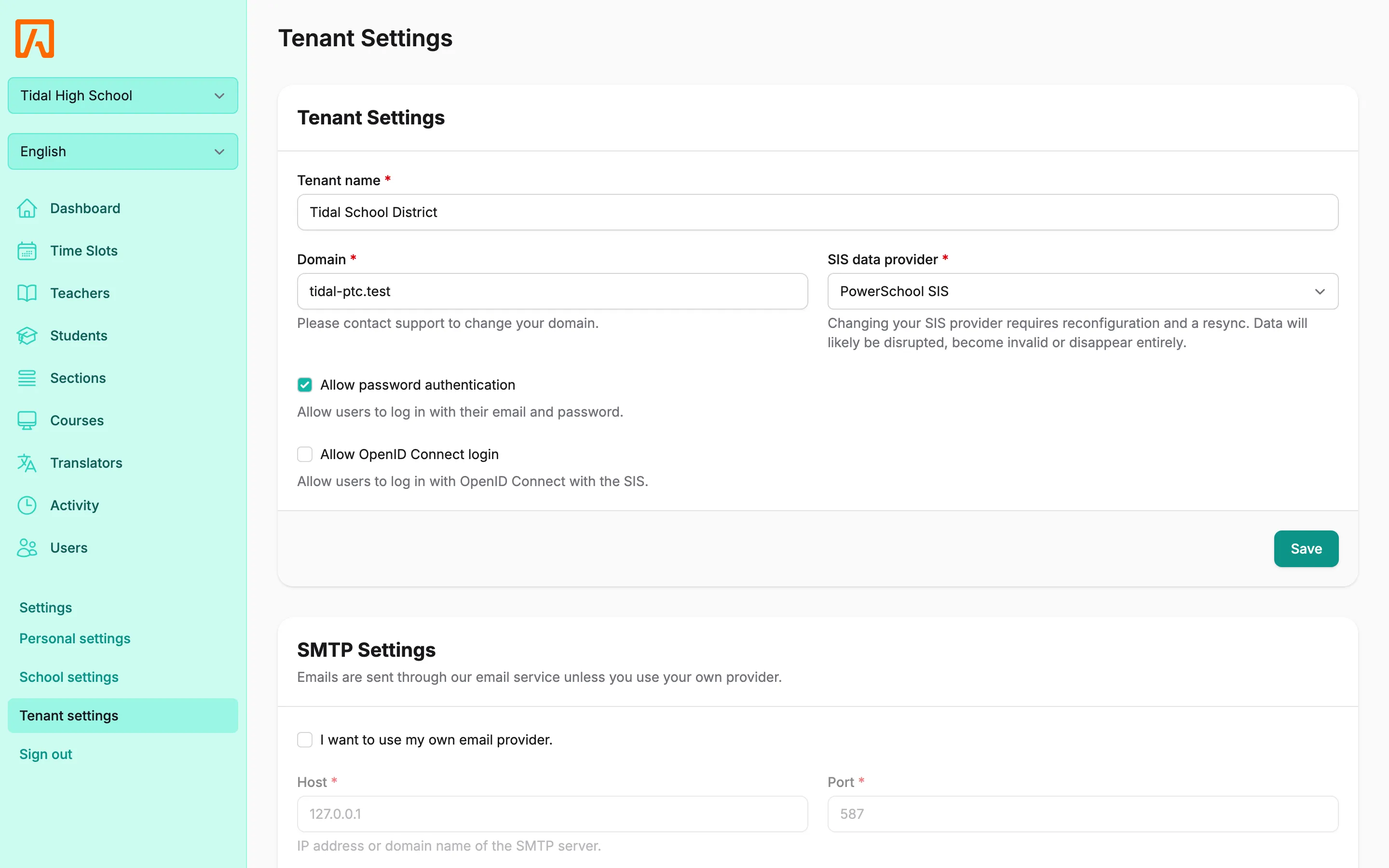
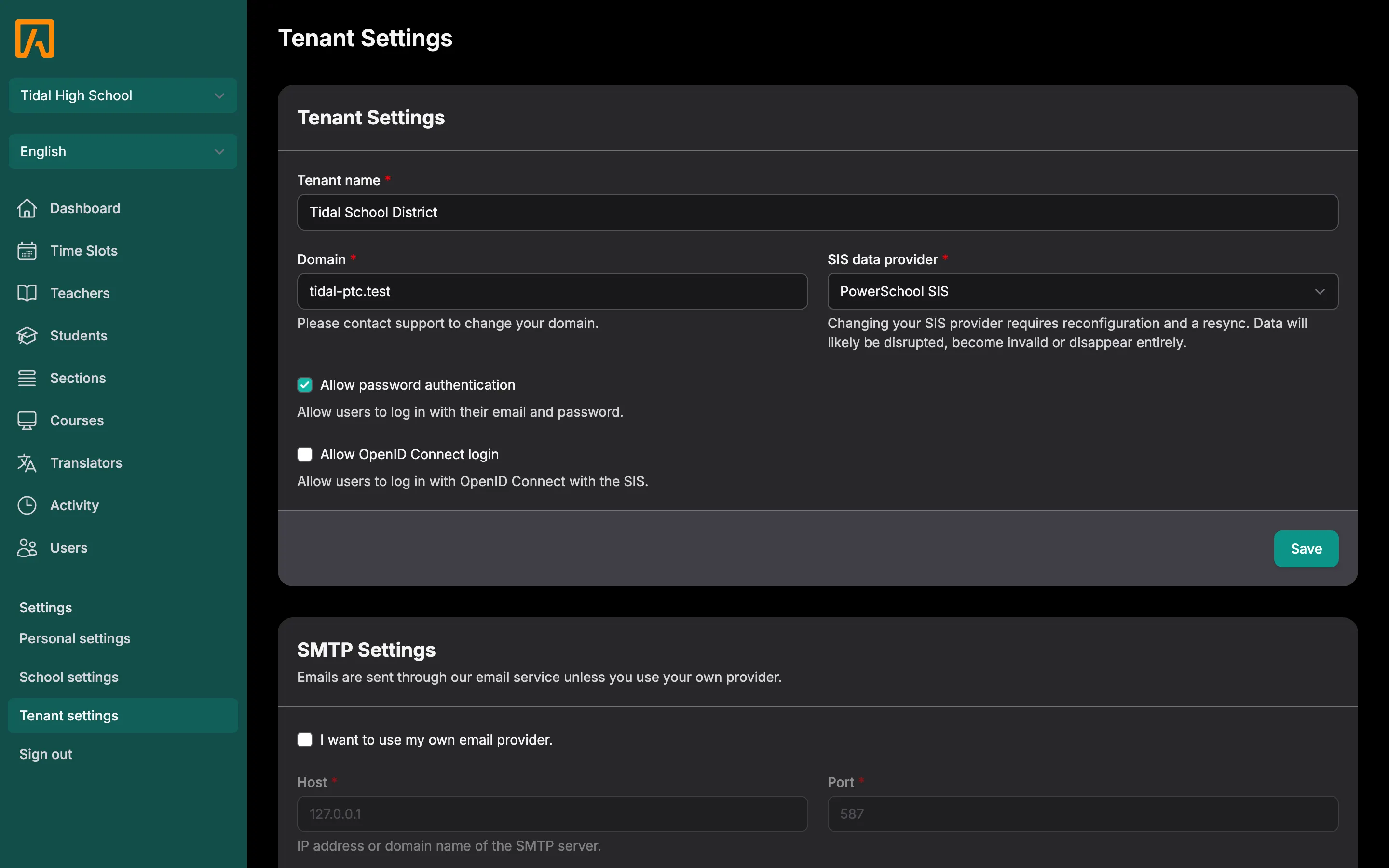
- During installation: select Download plugin on the
/installpage. - After installation: on the tenant settings page, find the PowerSchool plugin card and select Download plugin.
- During installation: select Download plugin on the
-
In PowerSchool, install the zip from plugin management, then enable the plugin.
-
When you enable it, PowerSchool registers the plugin with Tidal PTC (see below). On a new install, the PowerSchool URL, PowerSchool Client ID and PowerSchool Client Secret fields on the installer fill in automatically. You can also copy the client ID and secret from the plugin’s page in PowerSchool.
How registration works
Section titled “How registration works”When you enable the plugin, PowerSchool sends a POST to /api/powerschool/registration with the plugin’s client ID and secret, a URL on the PowerSchool server to verify, and the plugin’s registration key. Tidal PTC then:
- Checks the registration key. It is derived from your domain and
APP_KEY, so only a plugin downloaded from this install for this domain is accepted. - Calls the PowerSchool verify URL to confirm the server is reachable.
- Saves the PowerSchool URL, client ID and secret on the tenant, encrypted. On a self-hosted install with no tenant yet, it starts one for the requesting domain.
Tidal PTC always answers with HTTP 200 and reports the outcome in the response body:
| Message | Meaning |
|---|---|
SUCCESS |
The credentials were saved. |
Invalid registration key |
The plugin was built for another domain or another APP_KEY. Download it again from this install. |
Unknown district |
Cloud only: no district exists for this domain. |
INVALID_CERTIFICATE |
Tidal PTC couldn’t verify PowerSchool’s TLS certificate. |
HOST_UNKNOWN |
Tidal PTC couldn’t reach the PowerSchool server. |
Single sign-on
Section titled “Single sign-on”People sign in with their PowerSchool accounts in one of two ways. Both need the tenant’s PowerSchool URL, client ID and secret; until they’re set, the sign-in routes show “SIS is not configured. Please contact your systems administrator.”
From PowerSchool (OpenID)
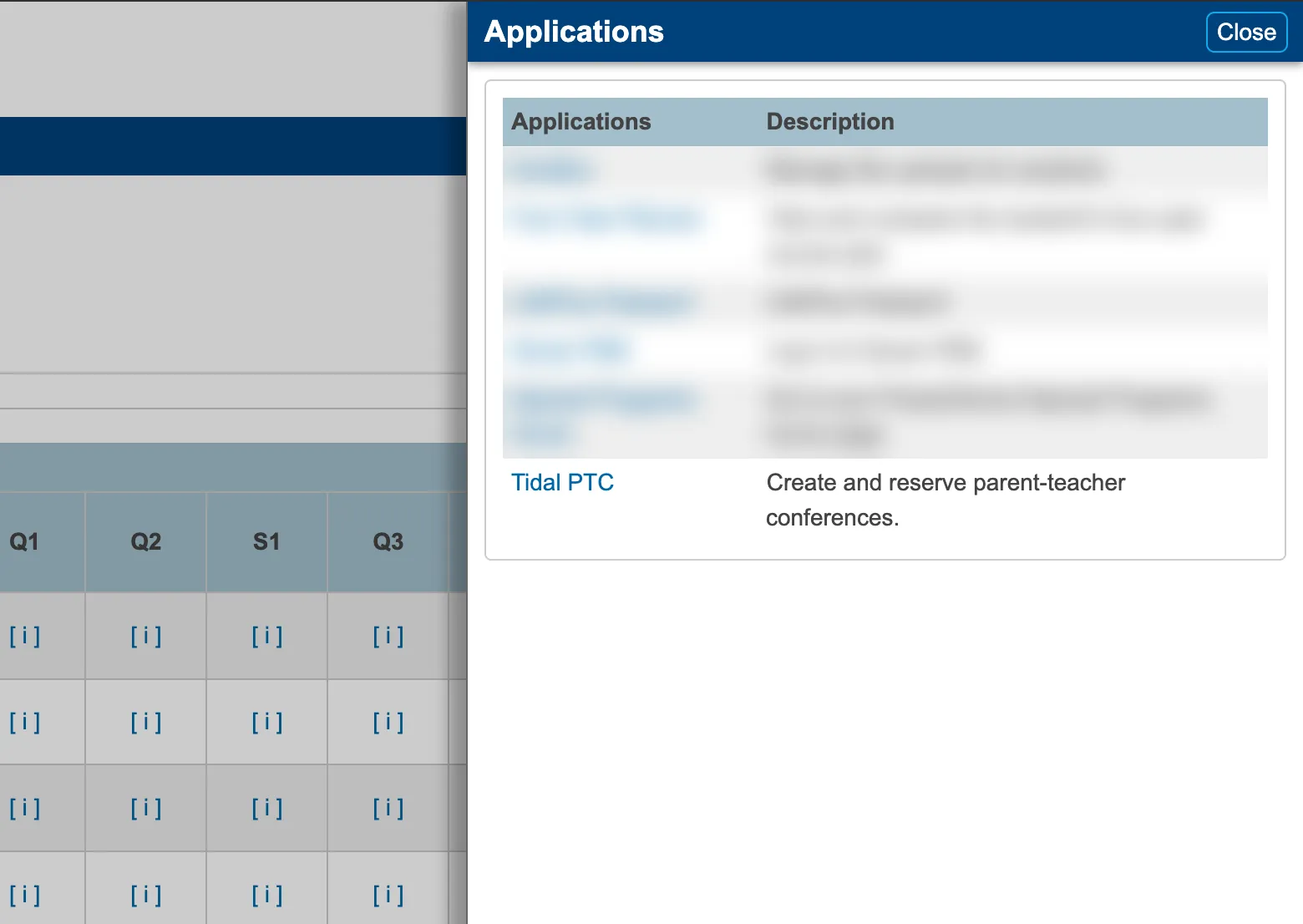
Section titled “From PowerSchool (OpenID)”Admins, teachers and guardians select the Tidal PTC link in PowerSchool’s header (or the admin left navigation). In the parent portal, the link is in the Applications panel. PowerSchool signs them in to Tidal PTC through /auth/powerschool/openid.
- Admins get access to the schools PowerSchool lists as their admin schools.
- Guardians have their account and linked students synced from PowerSchool as they sign in.
From the Tidal PTC login page (OpenID Connect)
Section titled “From the Tidal PTC login page (OpenID Connect)”When Allow OpenID Connect login is on in tenant settings (it is on by default), the login page shows Sign in with PowerSchool. It starts at /auth/powerschool/oidc/authenticate, and PowerSchool returns the user to /auth/powerschool/oidc. Each user is synced from PowerSchool after signing in.

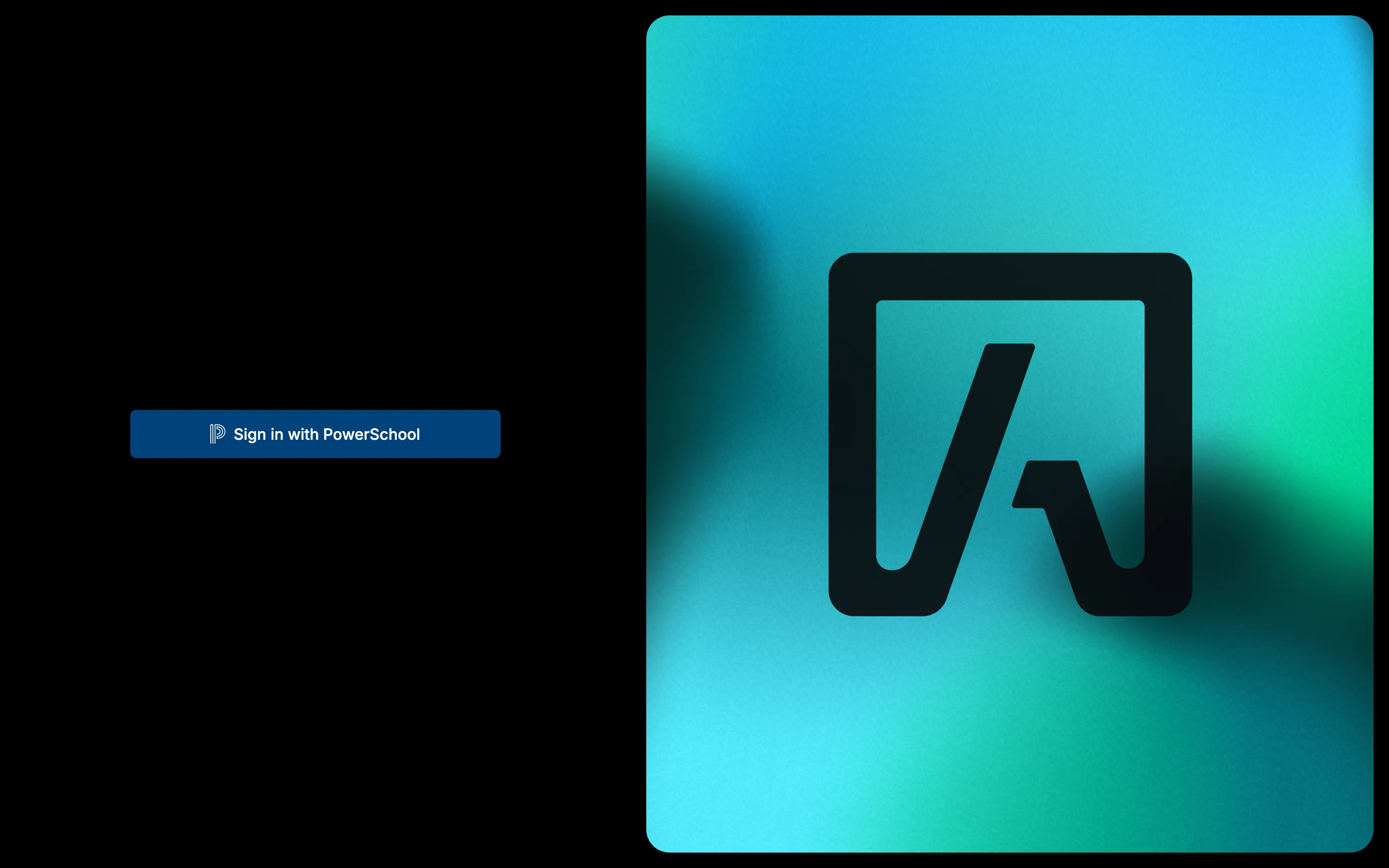
Allow password authentication is a separate setting, off by default, and we recommend leaving it off. When both are on, the login page also shows an email and password form below “Or continue with”.
Tidal PTC copies data from PowerSchool into its own database. Syncs run in the background on the sis_sync queue, after mail and notifications on the default queue, so the queue worker must be running with --queue=default,sis_sync.
What gets synced
Section titled “What gets synced”| Data | When |
|---|---|
| Schools | When you finish the installer. New schools are active by default; choose which are active under Active schools on the tenant settings page. |
| Staff, students, courses, sections | When you sync a school from its school settings page. |
| Section enrollment | After sections sync, one background job per section. |
| Guardians and their students | When each guardian signs in with PowerSchool. |
| A single record | From Sync from SIS in the record’s action menu (for example, a student). |
Sync a school
Section titled “Sync a school”-
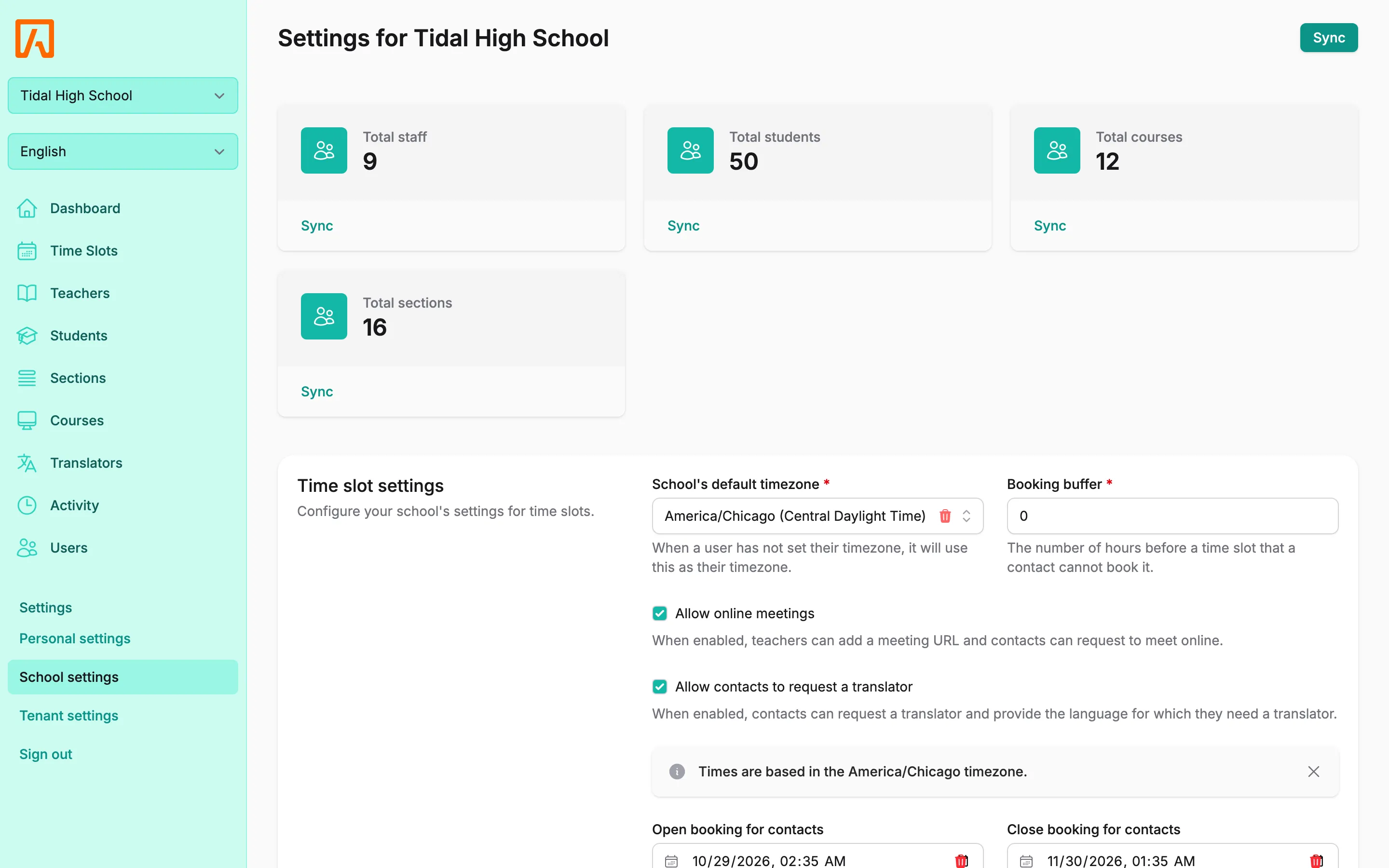
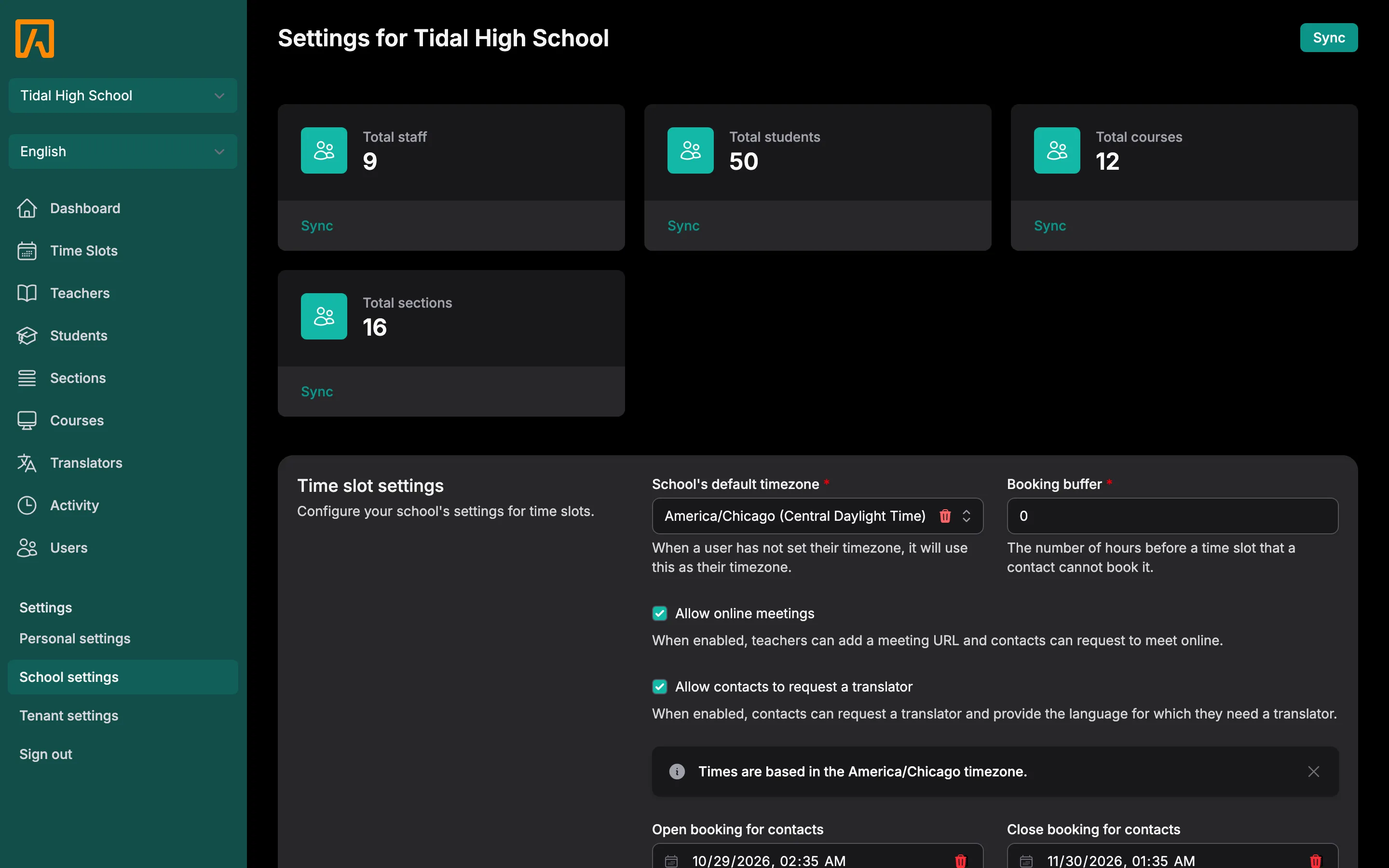
Switch to the school, then open its school settings page. You need the edit school settings permission.
-
Choose what to sync:
- Sync at the top of the page syncs the whole school, in order: the school itself, staff, students, courses, then sections.
- Sync on the Total staff, Total students, Total courses or Total sections card syncs only that item.
-
Tidal PTC shows “Sync started. You will be notified when it finishes.” When the sync finishes, you get a notification and the page refreshes its counts. While sections enroll, the Total sections card shows Enrollment with a processed and total count.
Sections depend on staff and courses, so sync those first if you sync items one at a time. Notifications arrive over websockets, so Reverb must be running to see them.