

Viewing your bookings
When a family books one of your time slots, the conference appears on your dashboard and on your time slot calendar. This page shows where to find each booking, what the family told you, and how to cancel a conference.
Who this is for
Section titled “Who this is for”Teachers and staff who have conference time slots.
Before you start
Section titled “Before you start”- You need time slots that families can book. See Creating your time slots.
See your upcoming conferences
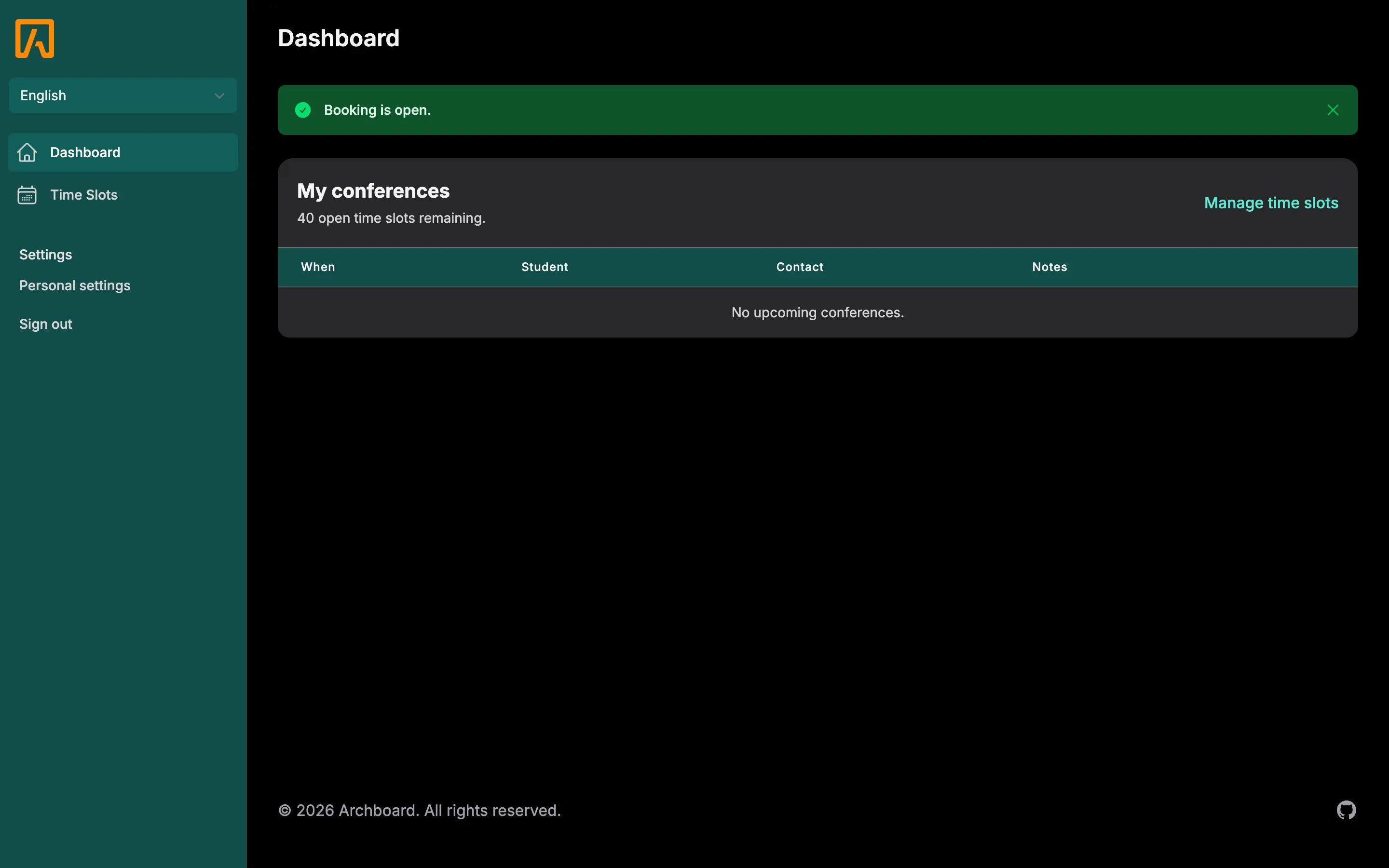
Section titled “See your upcoming conferences”The My conferences card on the dashboard lists every upcoming booked conference. Under the heading it tells you how many open time slots remain, for example “4 open time slots remaining.”
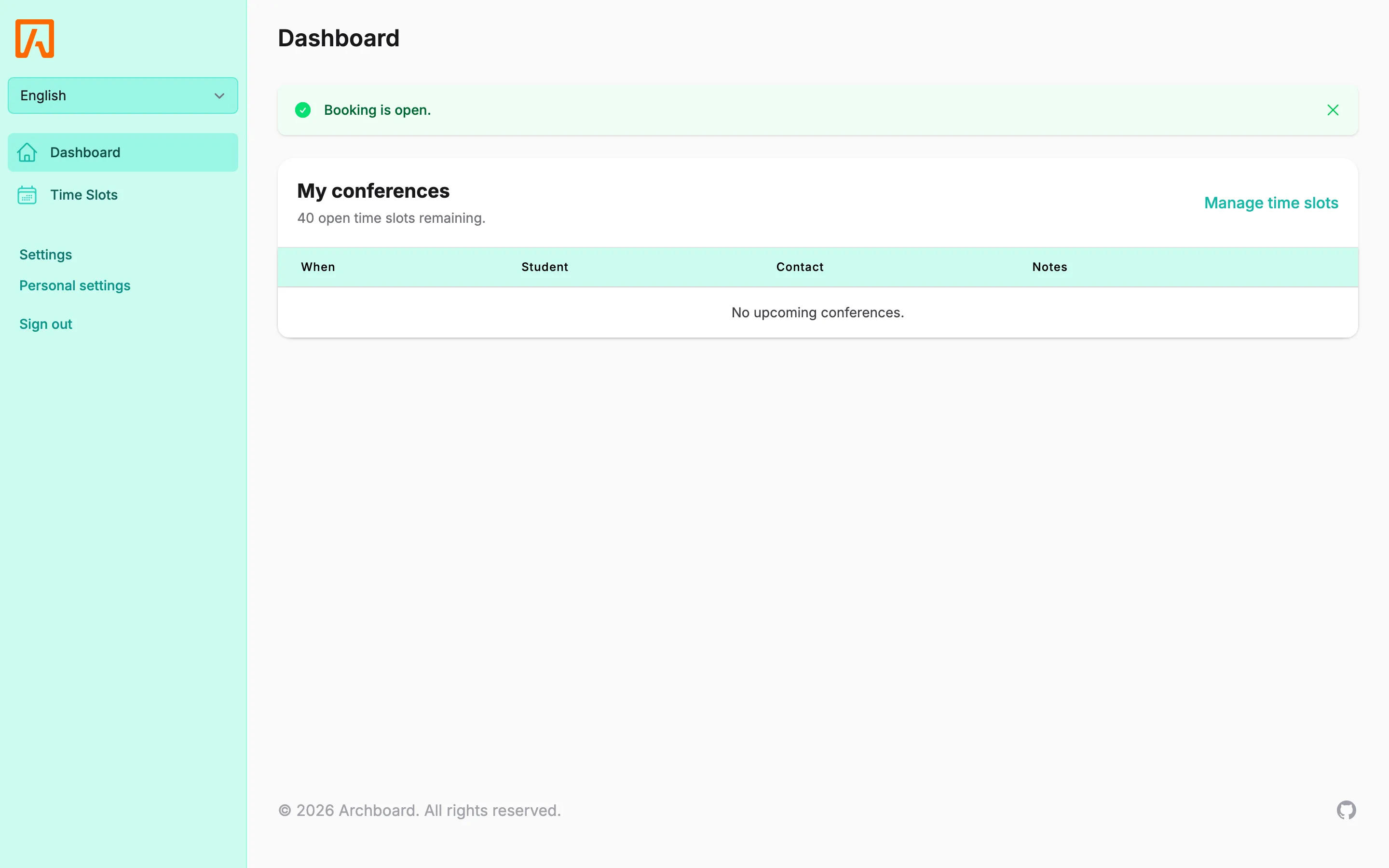
| Column | Shows |
|---|---|
| When | The date and time of the conference. |
| Student | The student the conference is about. |
| Contact | The parent or guardian who booked it. |
| Notes | What the family wrote when booking. |
If nothing is booked yet you see No upcoming conferences.
See booking details on the calendar
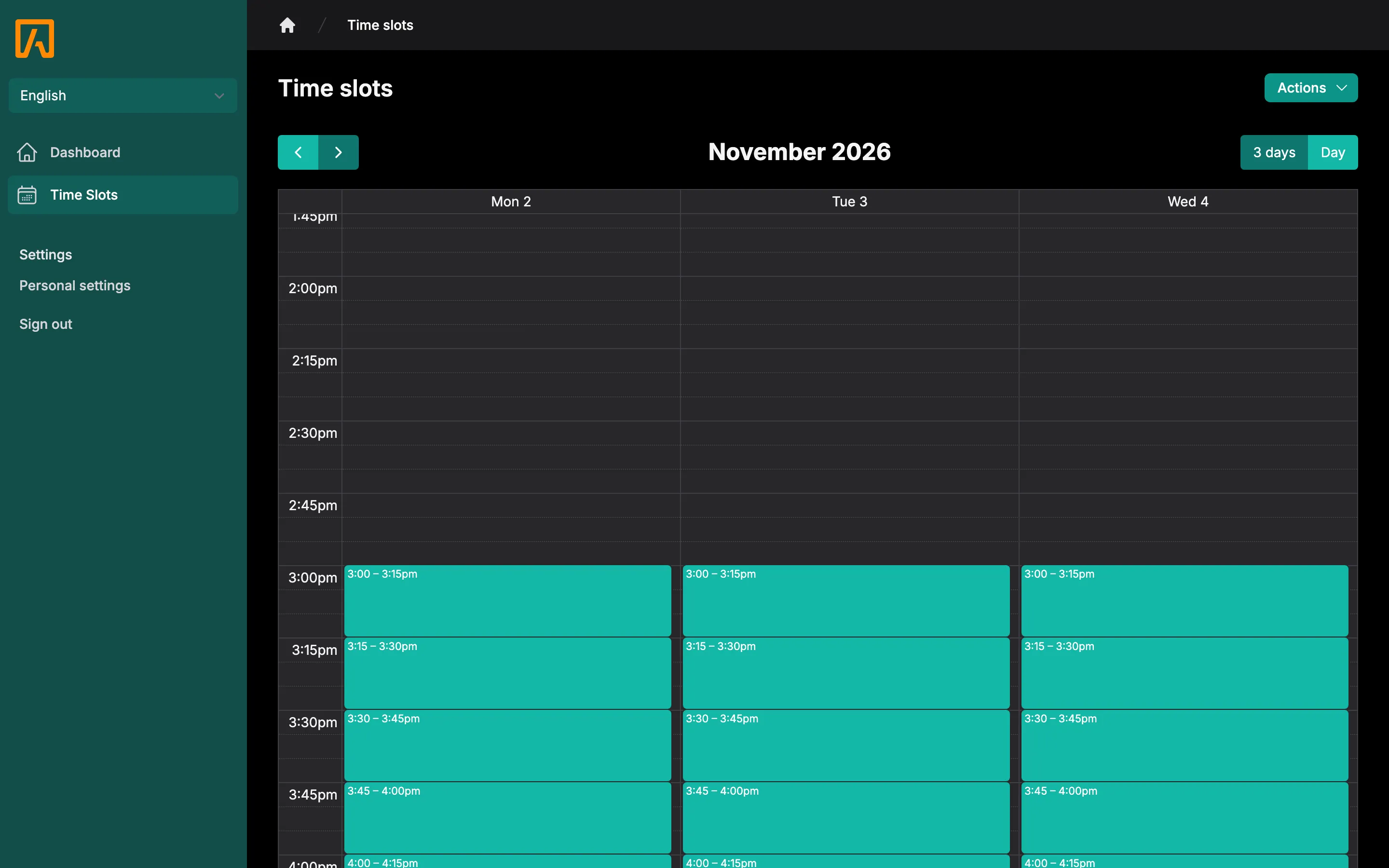
Section titled “See booking details on the calendar”- Open Time Slots in the sidebar. Booked slots show the student’s name.
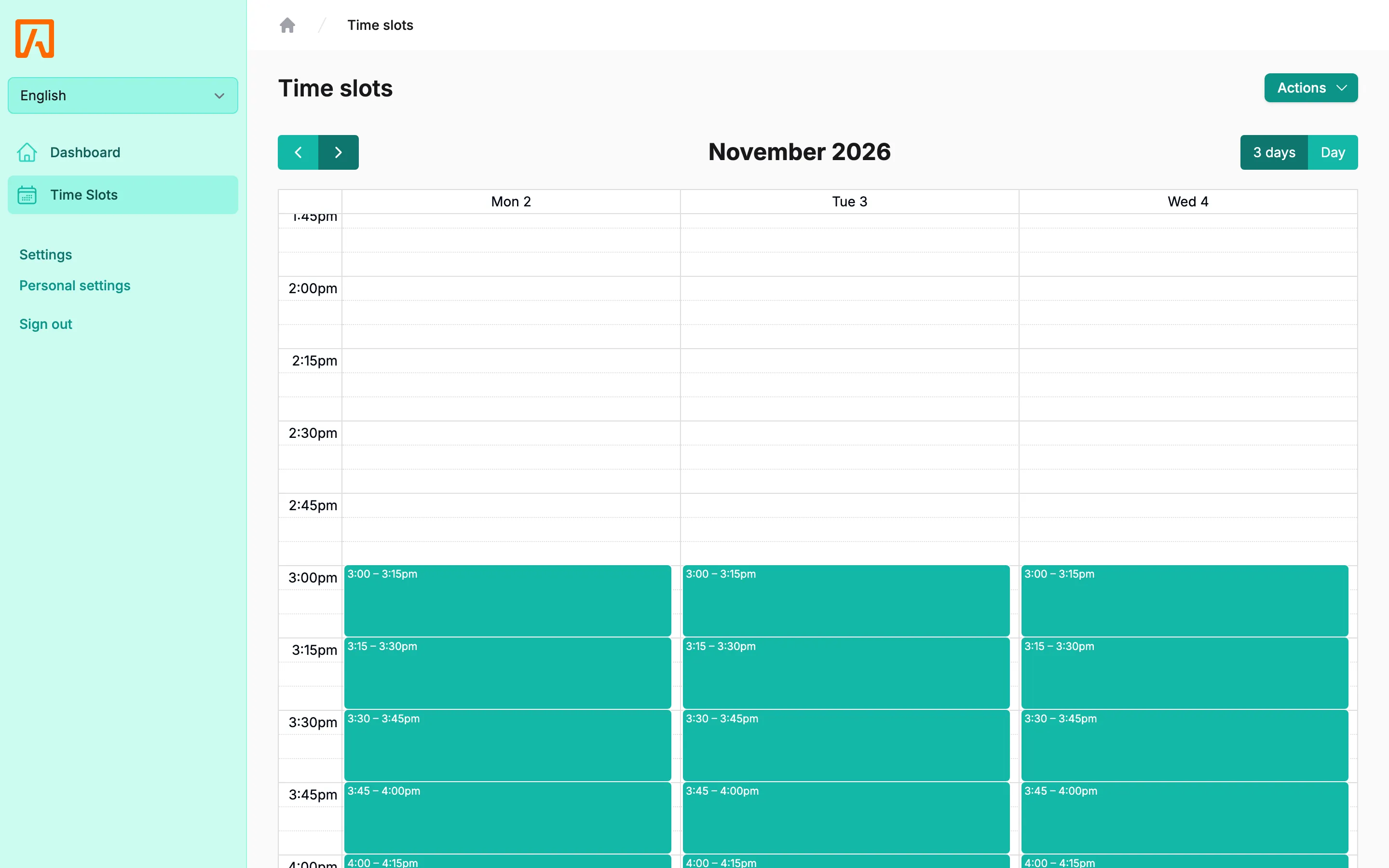
- To see full details, go to Manage my time slots and click a booked slot. The Edit time slot window opens with a Reservation section.
- The Reservation section shows the student, the contact’s name and email, when it was booked (Booked followed by the date), the family’s Notes, whether they asked to meet online (Online requested), and the Translator language if they requested one.
- Open History at the bottom to see every change to the slot.
If a translator was requested, you can add Translator notes. These are visible to staff only, for example the assigned translator.
Cancel a conference
Section titled “Cancel a conference”You can cancel a booking from the dashboard or from the calendar. The family and you both get a cancellation email (if notifications are on), and the slot becomes open again.
- On the dashboard, find the conference in My conferences and select Cancel.
- Confirm with Cancel conference.
From the calendar, open the booked slot and select Cancel reservation, then confirm.