

School settings
School settings control how conferences work at one school: when families can book, when teachers can edit their own time slots, how close to a conference families can still book, whether online meetings and translator requests are allowed, and which translator languages are offered. The page also shows how many staff, students, courses and sections are synced from your SIS, and lets you sync them again.
Who this is for
Section titled “Who this is for”School and district administrators with the Edit school settings permission for the school.
Before you start
Section titled “Before you start”- You need Edit school settings for the school. See Users and permissions.
- Settings apply to your current school. Switch schools first if you manage more than one (see Concepts).
- Open the page from the user menu: School settings (the address is
/settings/school/edit). The page title is “Settings for” followed by the school name.
Sync data from the SIS
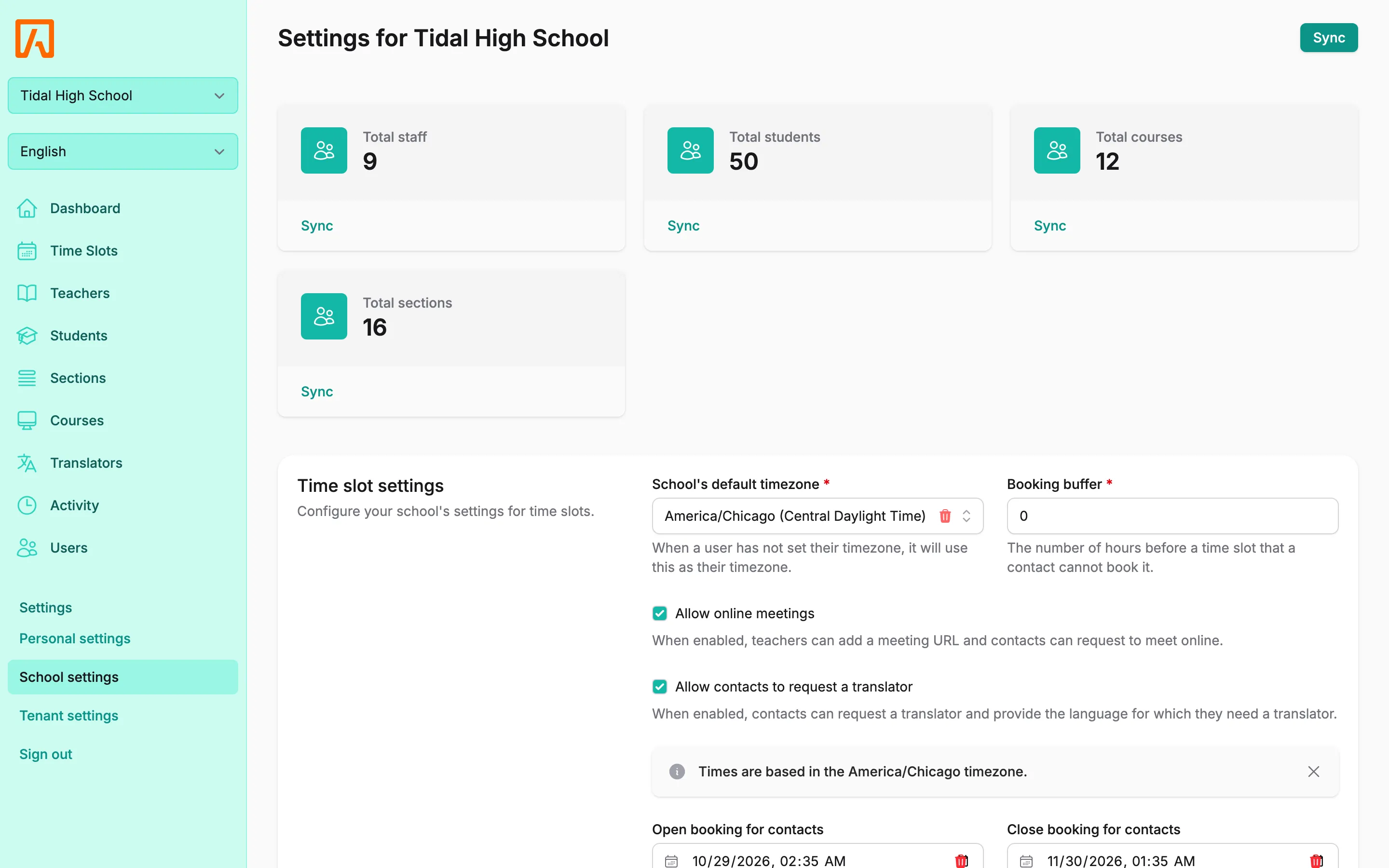
Section titled “Sync data from the SIS”The top of the page shows four counts: Total staff, Total students, Total courses and Total sections.
- Select Sync on a count to sync just that item from your SIS.
- Select Sync at the top of the page to sync the whole school: staff, students, courses and sections, in that order.
- Syncing needs Edit school settings. Anyone can sync their own user from Personal settings.
You see “Sync started. You will be notified when it finishes.” Syncs run in the background on the sis_sync queue, and the counts refresh while a sync is running. After sections sync, student enrollment keeps syncing in the background; the sections count shows its progress as Enrollment with processed and total jobs.
The finished notification is delivered in real time, so it needs real-time updates configured. See PowerSchool for what each sync pulls in.
Configure time slot settings
Section titled “Configure time slot settings”The Time slot settings card sets the booking rules for the school.
| Field | What it does |
|---|---|
| School’s default timezone | Used for any user who has not set their own timezone. Required. Booking window times on this card are in this timezone. |
| Booking buffer | The number of hours before a time slot that a contact can no longer book it. Contacts also cannot cancel their own booking online inside this window. Staff who can update time slots are not limited by it. |
| Allow online meetings | Teachers can add a meeting URL to time slots, and contacts can request to meet online. |
| Allow contacts to request a translator | Contacts can request a translator and choose the language when booking. Add languages in translator settings. |
| Open booking for contacts and Close booking for contacts | The window when contacts (guardians) can reserve time slots. |
| Open slot editing for teachers and Close slot editing for teachers | The window when teachers can create and edit their own time slots. |
- Set the fields you need.
- Select Save. You see “Settings saved.”
Under each window, a status line tells you whether it is open right now, for example “Contacts can reserve time slots.” or “Contacts cannot reserve time slots.”
How the windows work:
- If both the open and close times are empty, the window is closed.
- If only an open time is set, the window stays open from that time onward.
- If only a close time is set, the window is open until that time.
- The close time must be after the open time.
The admin dashboard shows a compact Booking availability card with just the four window dates and a link to All school settings.
Configure translator languages
Section titled “Configure translator languages”The Translator settings card lists the languages families can request a translator for. Translator profiles can only be given these languages.
- Select Add language.
- Choose a Language. Each language can appear only once.
- Optionally set Maximum requests: the total number of upcoming translator requests allowed for this language.
- Optionally set Maximum overlaps: how many requests for this language can overlap in time.
- To remove a language, remove its row. Removing every language is allowed.
- Select Save. You see “Language settings updated successfully.” Removed languages are deleted on save. Existing bookings keep their language, but families can no longer book with a removed one.
Leave a maximum empty or at 0 for no limit. When a limit is reached, families see “No more translator requests are available for this language.” or “No translator is available for this language at that time.” when booking.