

Signing in as a parent or guardian
You sign in to Tidal PTC with the same account you use for your school’s PowerSchool parent portal. You can start from the parent portal itself or from the Tidal PTC address your school gave you. Once you are in, you see your children and their teachers on one page.
Who this is for
Section titled “Who this is for”Parents, guardians and other family contacts who want to book a conference with a teacher.
Before you start
Section titled “Before you start”- You need a PowerSchool parent portal account. Your account comes from the school’s records, so you do not need to sign up.
- Some schools ask for a four-character District code first. If you see that box, type the code the school gave you and select Continue.
Sign in from the PowerSchool parent portal
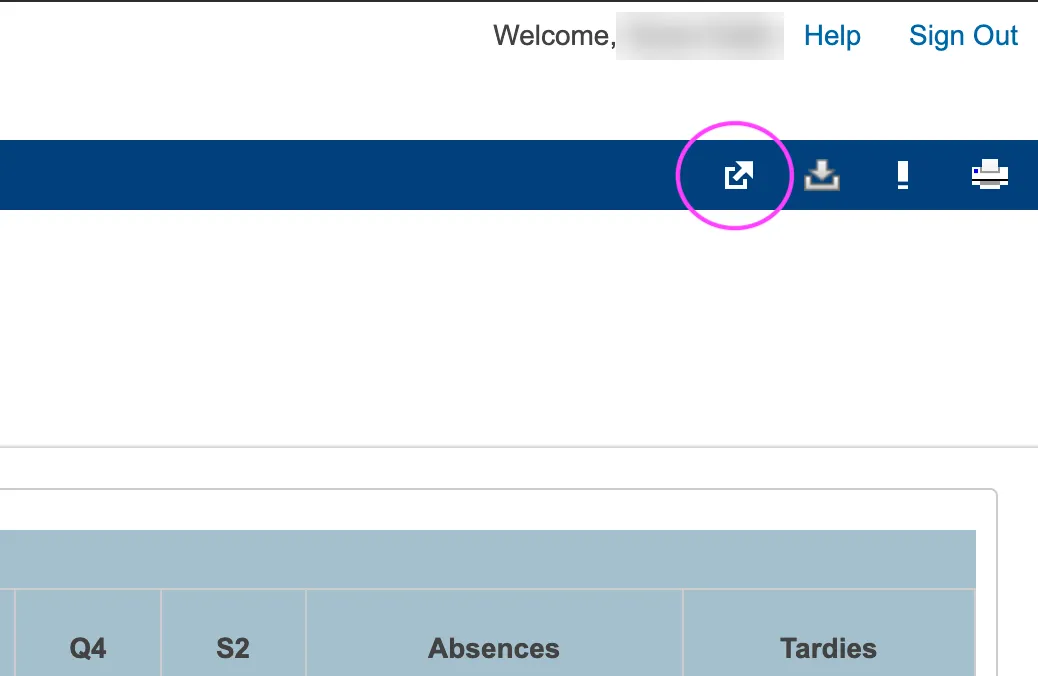
Section titled “Sign in from the PowerSchool parent portal”- Sign in to the PowerSchool parent portal and select the Applications icon in the blue bar at the top of the page.
- In the Applications panel, select Tidal PTC.
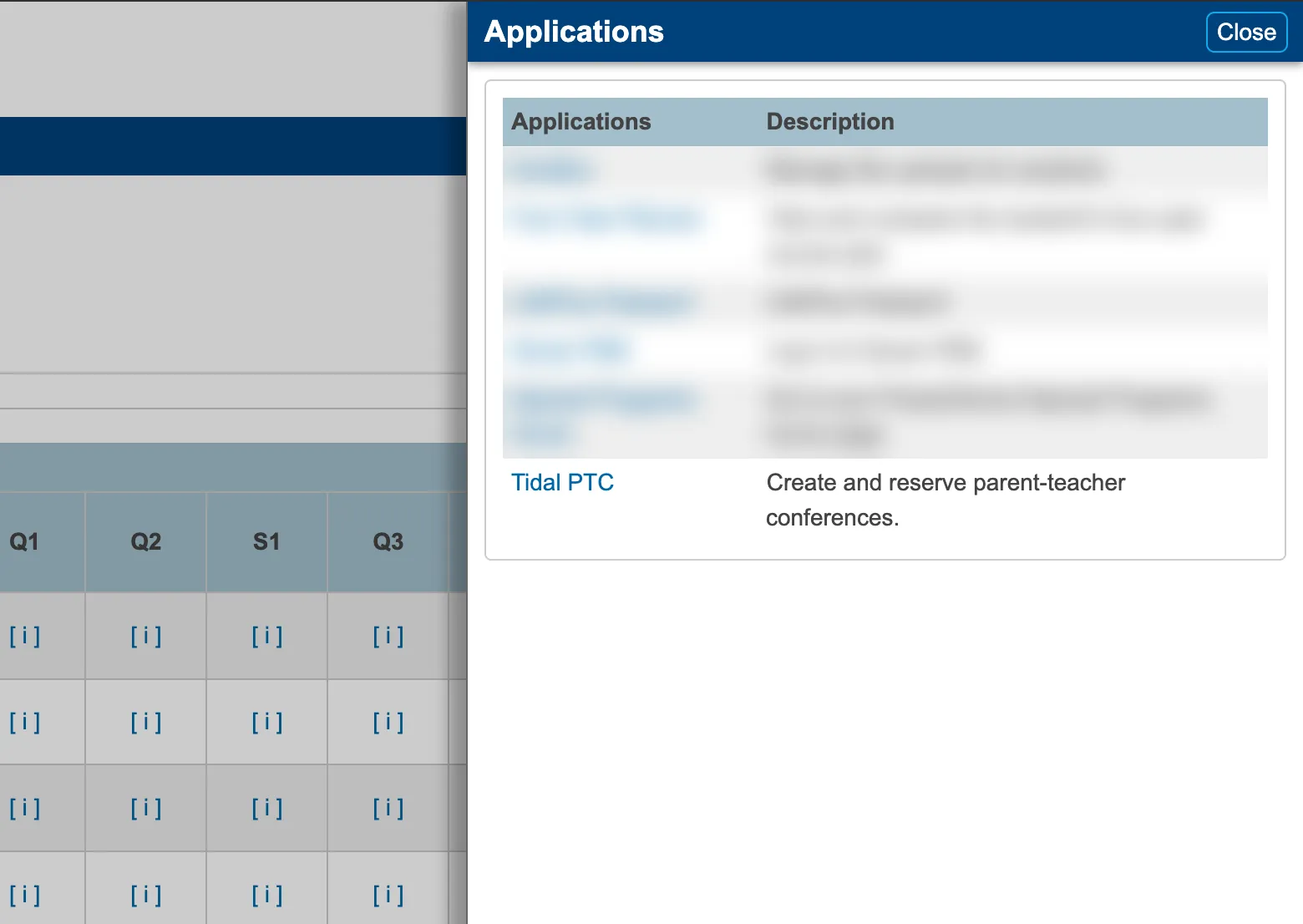
- Tidal PTC opens, already signed in.
Sign in from the Tidal PTC address
Section titled “Sign in from the Tidal PTC address”- Open the Tidal PTC address your school gave you.


- Select Sign in with PowerSchool and sign in with your parent portal account.
- You come back to Tidal PTC, signed in.
If you see “No students found”
Section titled “If you see “No students found””This means your account is not linked to any students yet. Contact your child’s school and ask them to check your contact information. Select Log out to leave the page.