

Booking for families
Office staff can book a conference for a student with any of their teachers, for example when a parent calls the school. Staff bookings are not limited by the booking window or booking buffer, and can use slots that families cannot reserve themselves. This page covers booking, rescheduling and cancelling on a family’s behalf.
Who this is for
Section titled “Who this is for”Office staff and administrators who handle conference bookings for families.
Before you start
Section titled “Before you start”- You need Update on Time Slots to book for families, plus View list and View on Students to find the student. See Users and permissions.
- The teacher must have time slots. See Time slots and batches.
- The student, the section and the course must all have booking enabled. See Directory.
Book a conference
Section titled “Book a conference”- Select Students and open the student.
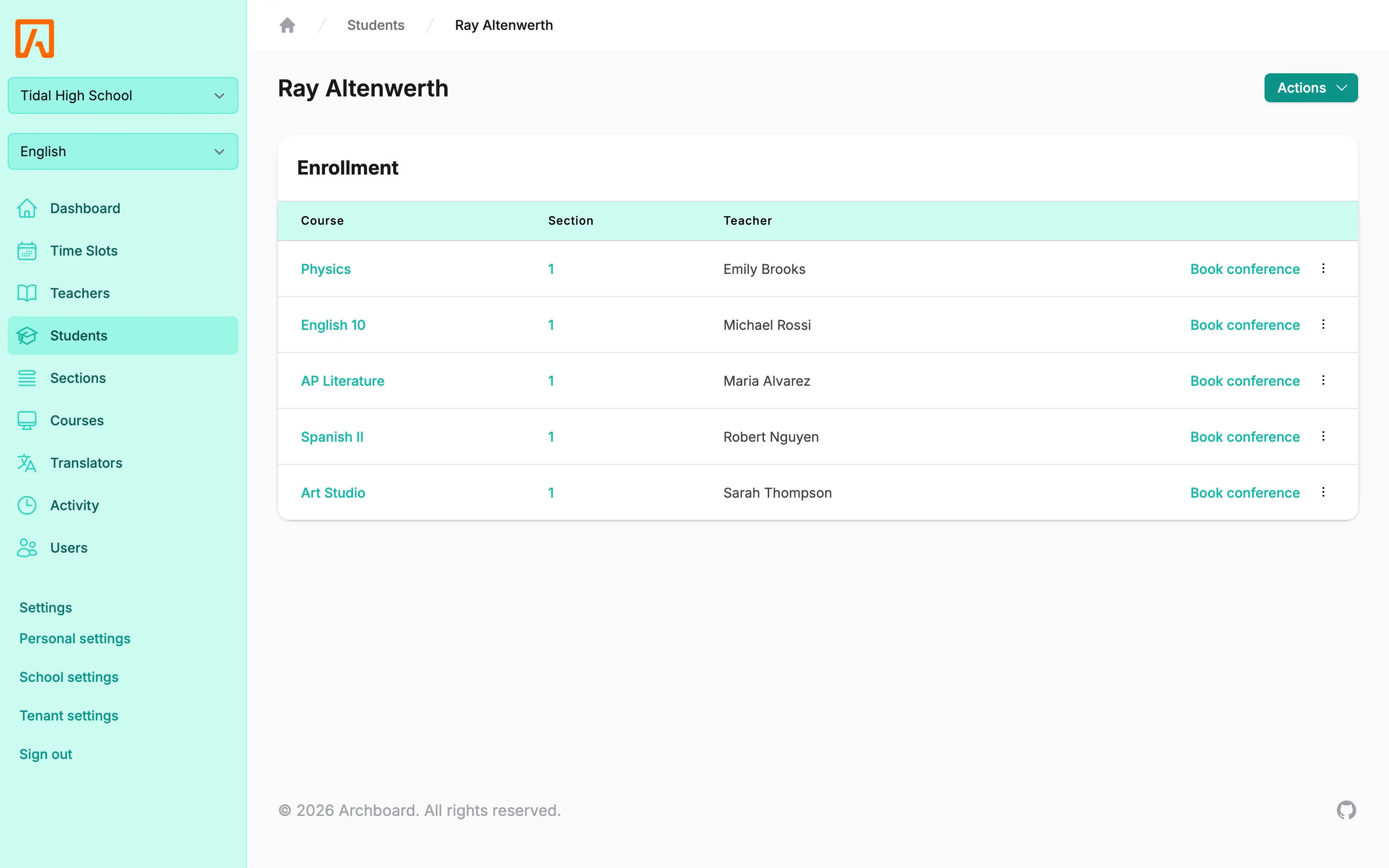
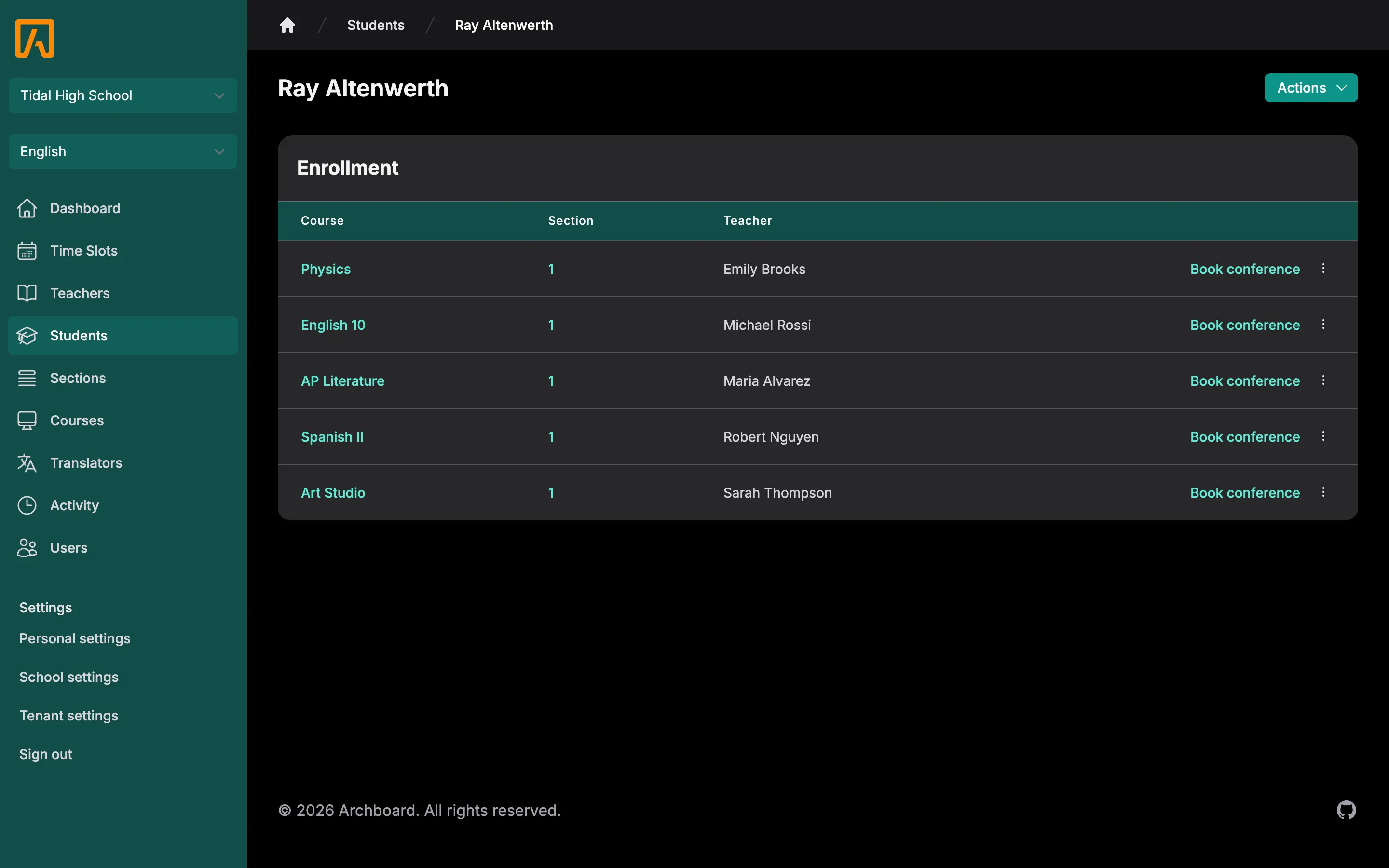
- In the Enrollment table, select Book conference on the row for the teacher. If the section has an override teacher, you book with them.
- Pick a time. Use List or Calendar to switch views. Booked times and times that overlap the student’s other conferences cannot be chosen.
- Optionally add Notes, check I would like to meet online, or choose a language under Translator. These options only appear when the school and the time slot allow them.
- Select Book conference. You return to the dashboard and see “Conference booked successfully.”
The teacher, the person who made the booking and all of the student’s guardians receive a confirmation (each once, following their notification preferences), and “Conference booked” is recorded in the activity log.
What staff bookings skip
Section titled “What staff bookings skip”Compared with a family booking, a staff booking:
- shows every upcoming slot for the teacher, including slots with Allow contacts to reserve the time slot unchecked;
- ignores the booking window and the booking buffer.
These rules still apply:
- A student can have only one upcoming conference with each staff member: “This student already has an upcoming conference with this staff member.”
- A slot cannot overlap the student’s other conferences: “This time slot overlaps with another reservation.”
- Translator requests respect the language limits in school settings.
Reschedule a conference
Section titled “Reschedule a conference”- Open the student and select Book conference for the same teacher again.
- The page says “Currently booked for” followed by the current time. Pick a new time.
- Select Move conference. You see “Conference rescheduled successfully.”
A conference can only move to another slot of the same staff member. Any translator notes move with it. The teacher, the person who booked and the student’s guardians are notified.
Cancel a conference
Section titled “Cancel a conference”- Open the teacher’s time slots (from Users or Teachers, select Edit time slots).
- Click the booked slot to open Edit time slot.
- Select Cancel reservation and confirm.
The slot becomes available again, the teacher, the person who booked and the student’s guardians are notified, and “Conference cancelled” is recorded in the activity log. Families cancelling their own booking cannot do so within the booking buffer; staff can.