

Language and timezone
You can use Tidal PTC in English, Chinese, Japanese, Korean, Spanish or Arabic. Conference times show in your own timezone, so it is worth checking that the timezone is right before you book.
Who this is for
Section titled “Who this is for”Anyone using Tidal PTC, especially families who prefer a language other than English or who live in a different timezone from the school.
Change the language
Section titled “Change the language”The language menu is near the top of the sidebar, under the logo. On a phone, open the menu first.
- Open the language menu. Each language is listed in its own writing: English, 简体中文, 日本語, 한국어, Español, العربية.
- Choose your language. The page reloads in that language.
Your choice is saved to your account, so emails from Tidal PTC also arrive in that language. When you choose Arabic, pages read from right to left.
You can also change it in Personal settings under Language.
Check your timezone
Section titled “Check your timezone”If your device’s timezone is different from the one saved in your account, Tidal PTC asks you about it:
- A window called Update your timezone asks if you want to change to your device’s timezone. Select Ok to accept it.
- To pick a different one, select Choose something else, choose your Timezone, then select Ok.
A yellow bar at the bottom of the page may also ask “Are you in the … timezone?” Select No, change it to fix it.
Change settings in Personal settings
Section titled “Change settings in Personal settings”- Open Personal settings from the sidebar.
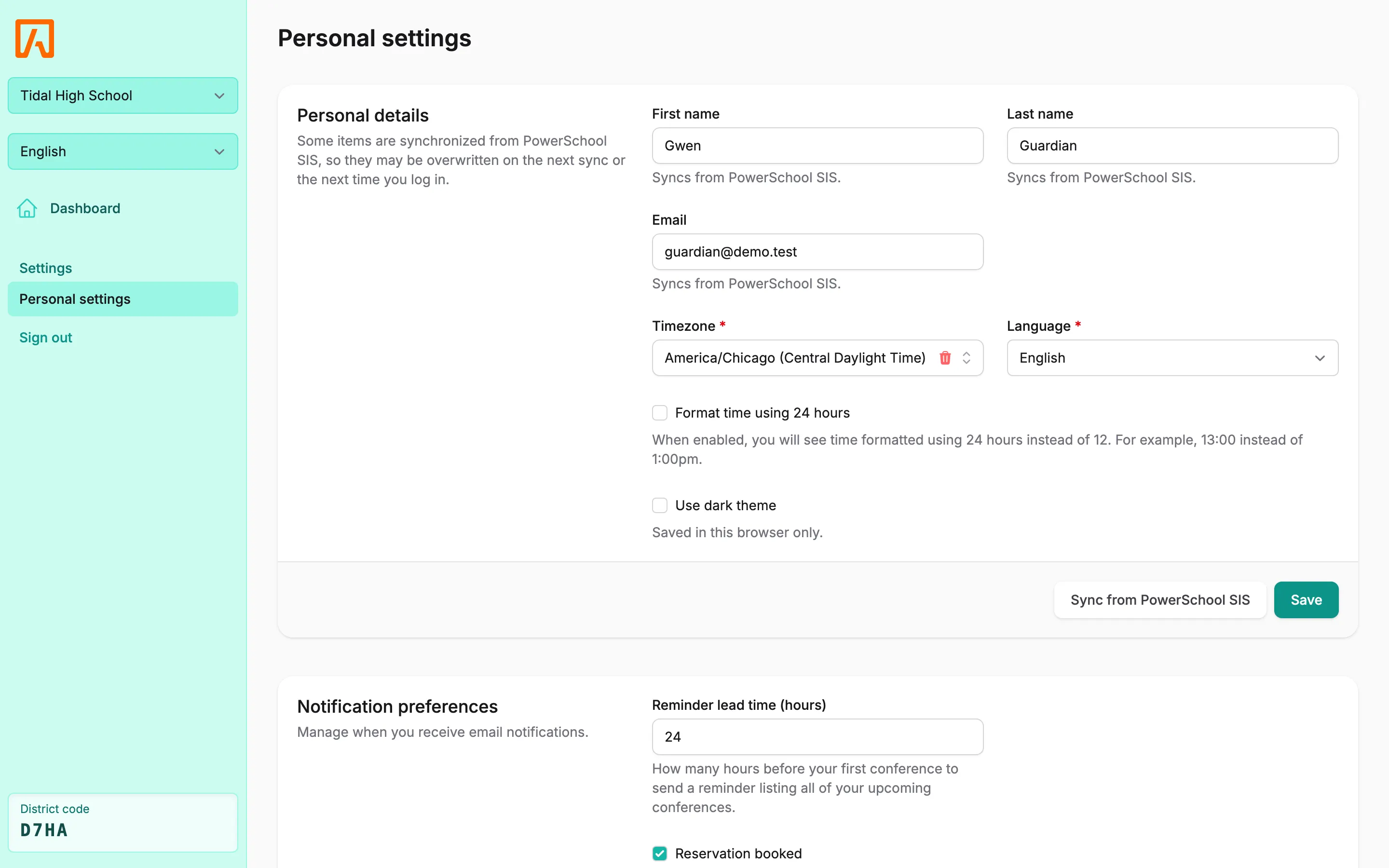
- Under Personal details, set your Timezone and Language.
- Check Format time using 24 hours if you prefer times like 13:00 instead of 1:00pm.
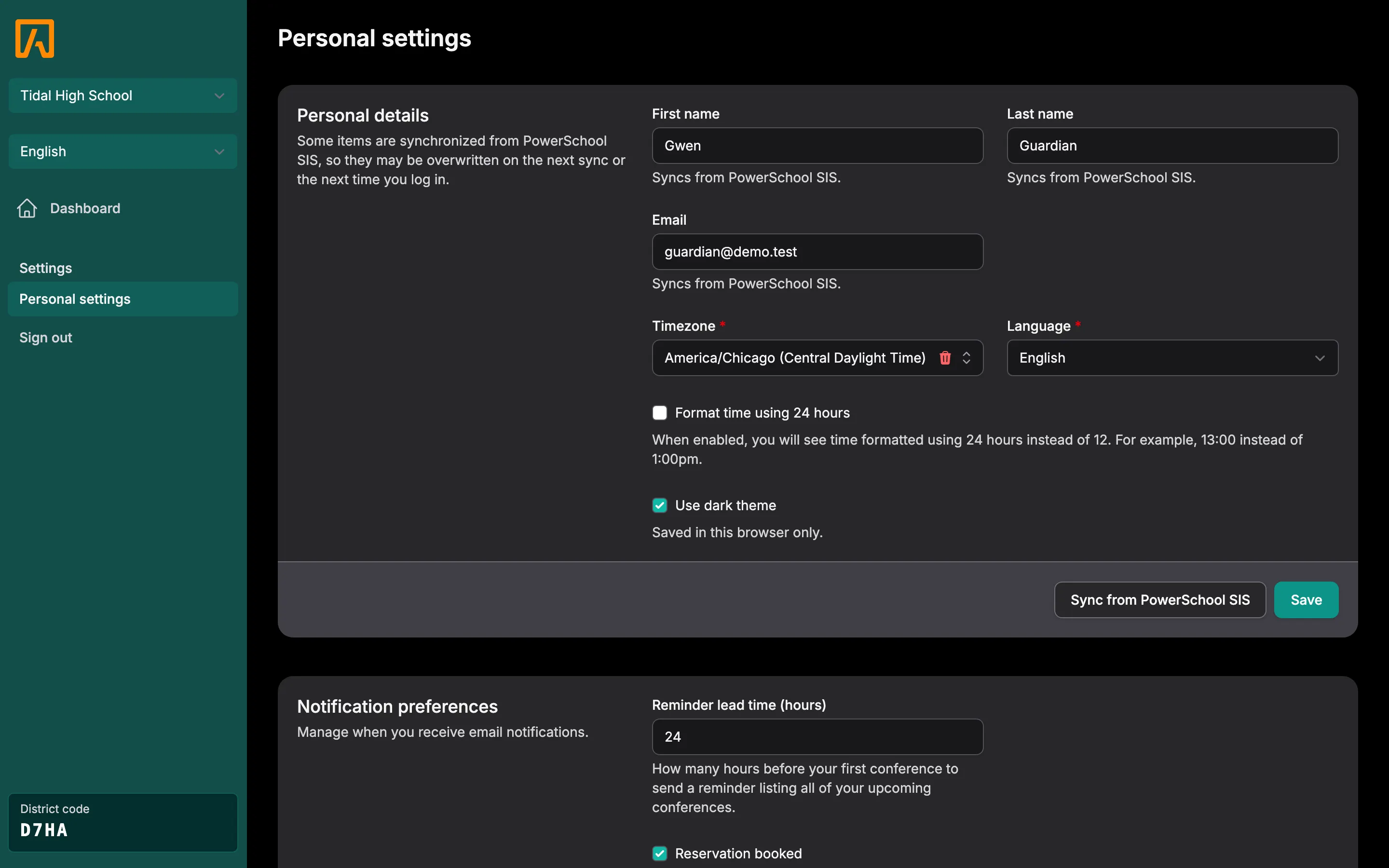
- Check Use dark theme if you prefer a dark screen. This is saved in this browser only.
- Select Save.